Add a secondary DNS server to DNSimple
Last updated
Table of Contents
- Before starting
- Enable secondary DNS
- Edit secondary DNS configuration
- Disable secondary DNS
- AXFR name server details
- Frequently asked questions
- Have more questions?
This guide covers outbound secondary DNS: DNSimple is the primary (leader), and another provider is the secondary. For concepts, see What is Secondary DNS?. For when to use secondary DNS, see DNS Redundancy Options at DNSimple.
To make DNSimple the secondary instead, see Add DNSimple as a secondary DNS server.
Warning
Secondary DNS and DNSSEC require special considerations. Read Why DNSSEC and Secondary DNS May Not Work Together before enabling both.
Warning
When using secondary DNS, ensure both providers handle Empty Non-Terminals (ENTs) consistently. Different providers may implement ENT behavior differently, especially with wildcard records. Inconsistent implementations can lead to different responses from your primary and secondary name servers. Learn more about ENTs and Secondary DNS.
Before starting
Choose, activate, and gather details for the secondary DNS provider you will use.
DNSimple provides pre-configurations and step-by-step guides for:
You can also choose or . You can configure the secondary provider either before or after you enable the configuration in DNSimple.
You can configure secondary DNS on domains whether or not they currently delegate to DNSimple. If delegation points elsewhere, point the domain to DNSimple before the configuration takes effect.
If the domain is not registered with DNSimple, update delegation at your registrar to include the secondary name servers you chose. For example, if your secondary name servers are ns1.secondary.com and ns2.secondary.com, change delegation from:
ns1.dnsimple-edge.comns2.dnsimple-edge.netns3.dnsimple-edge.ions4.dnsimple-edge.org
to:
ns1.dnsimple-edge.comns2.dnsimple-edge.netns3.dnsimple-edge.ions4.dnsimple-edge.orgns1.secondary.comns2.secondary.com
Revert that change if you disable secondary DNS later.
Enable secondary DNS
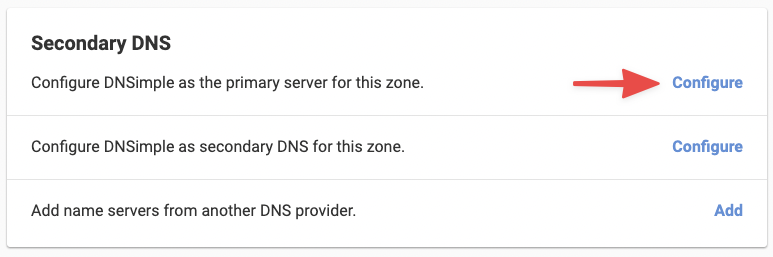
Open the domain, then open the tab. Use the card and click for DNSimple as the primary server for the zone.
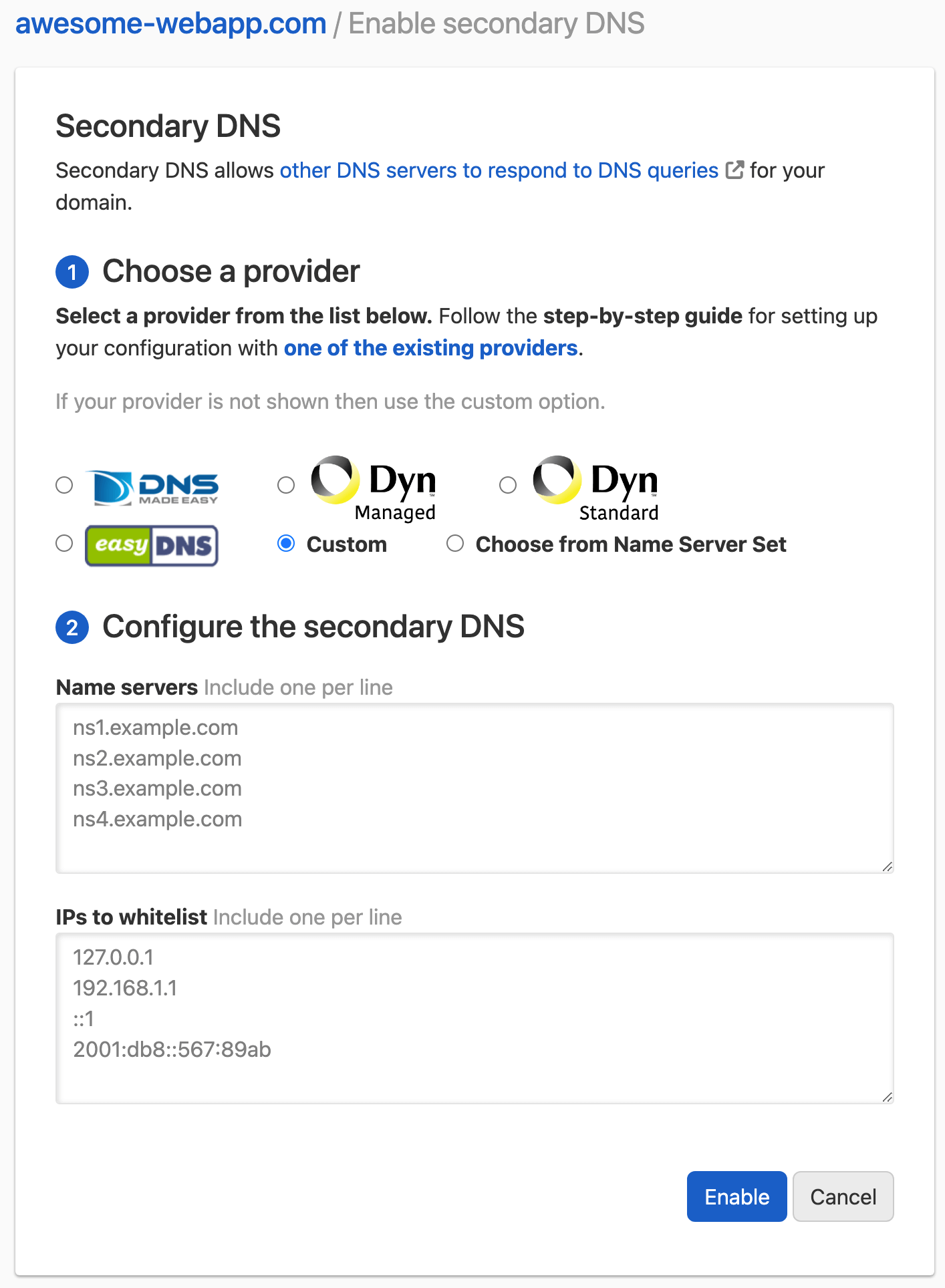
Choose your secondary provider. For EasyDNS, DNSMadeEasy, and Dyn, the IP addresses to allow are prefilled. EasyDNS also prefills its name servers; for the others, enter the name servers your provider assigns. You can also apply name servers from a name server set. Otherwise select and enter NS names and IPs allowed for zone transfer. Click . For the limits and accepted formats of each field, see Secondary DNS Field Reference.
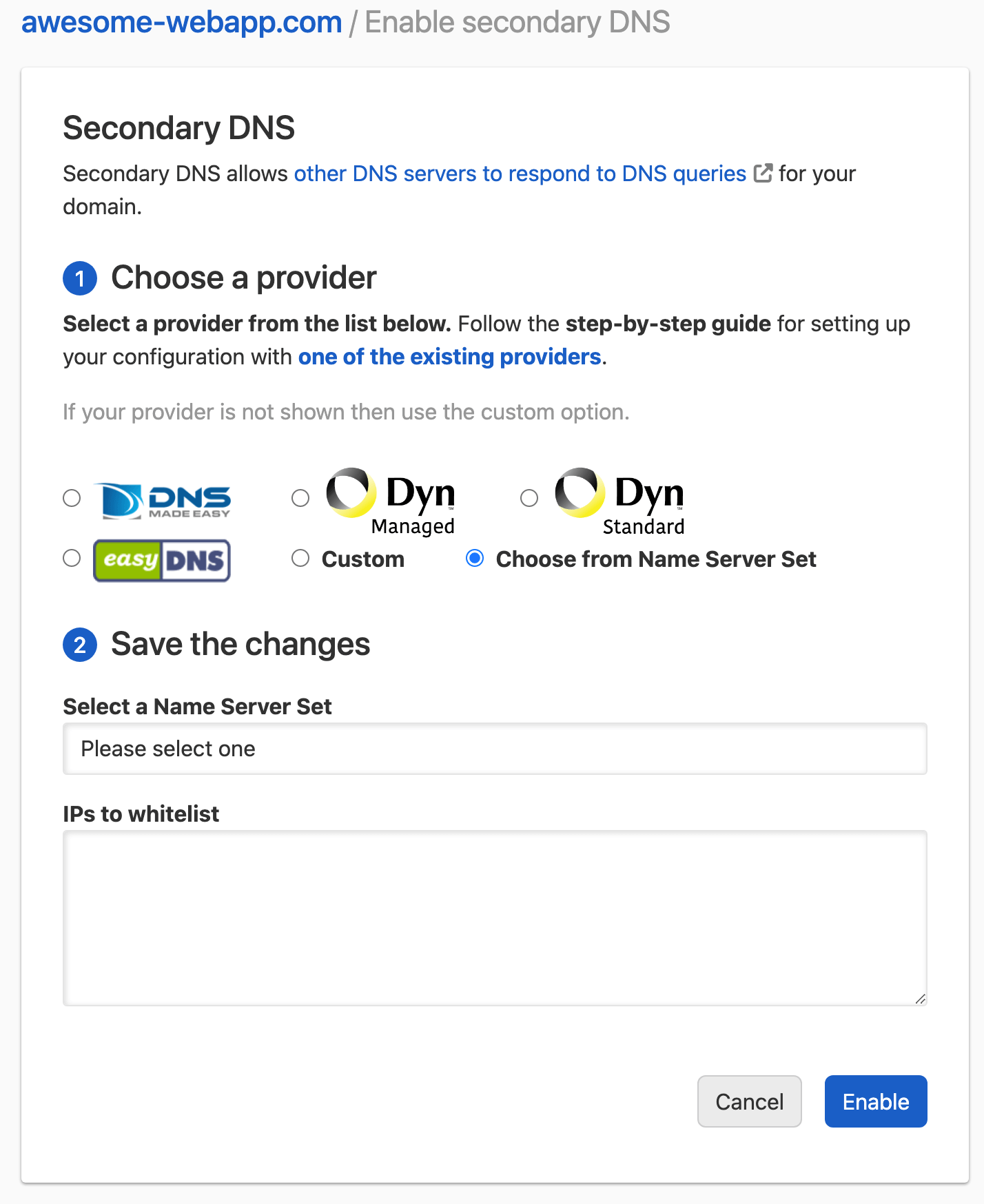
If you select , pick one of the name server sets configured on your account.
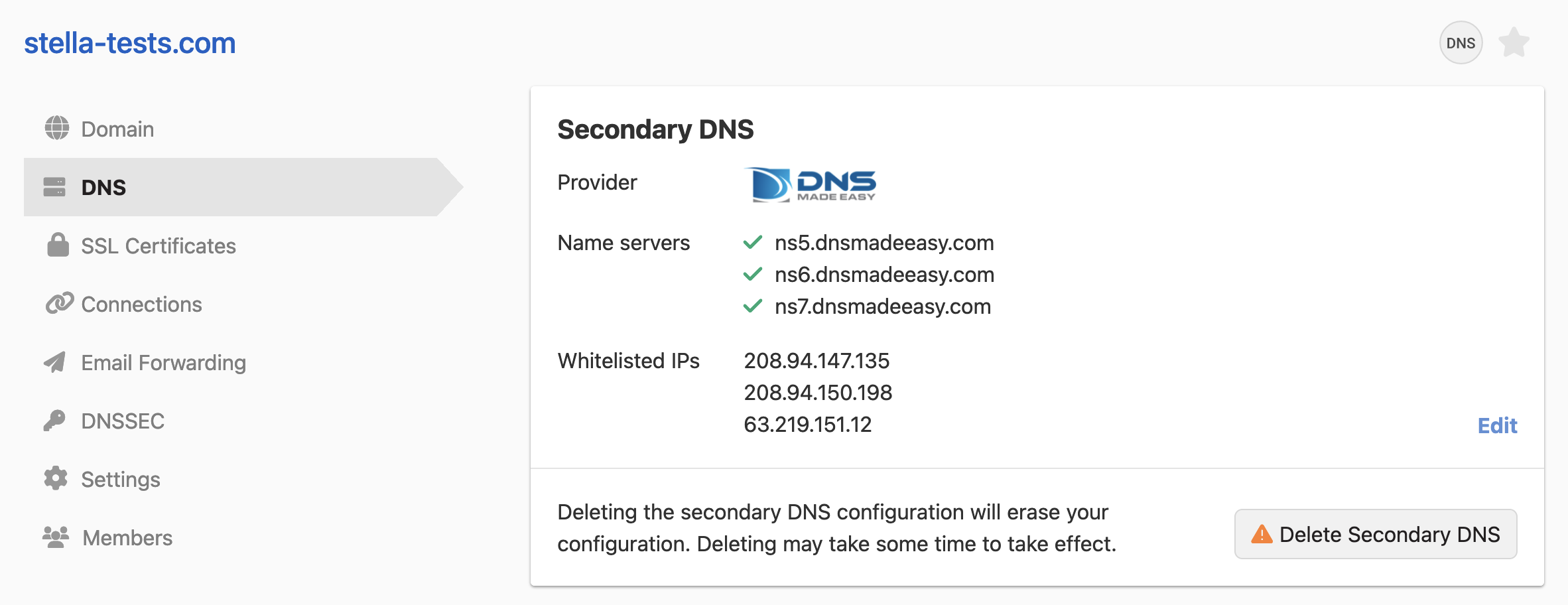
After you submit, the DNS page shows the updated configuration.
You may see warnings such as:
- The secondary DNS configuration is still propagating to the primary name server.
- Configured secondary name servers are not all serving the same zone data as the primary (propagation delay or an AXFR issue at the secondary provider).
- Registrar delegation is missing one or more name servers from the secondary DNS configuration.
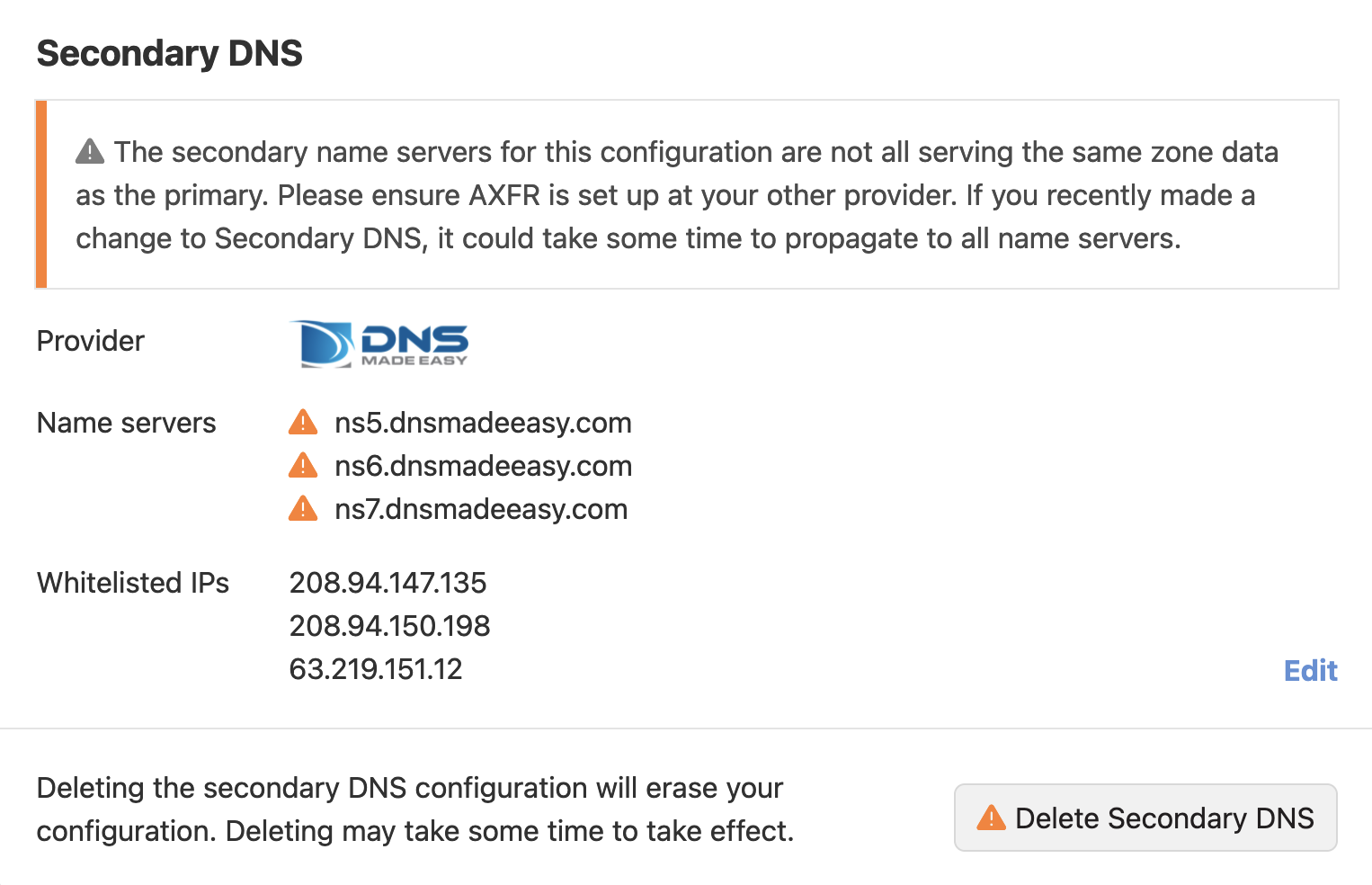
To work through these warnings, see Troubleshoot Secondary DNS Zone Transfers.
Warning
If your domain is registered with DNSimple, DNSimple replaces the current registry delegation with DNSimple name servers plus the secondary name servers you configured. If you were delegating elsewhere for DNS, registry values are updated to match the NS set on the apex zone in the record editor.
Add a secondary DNS zone with DNSimple as leader from the dashboard
- Log in to DNSimple with your user credentials.
- If you have more than one account, select the relevant one.
- Click on the dashboard, then choose .
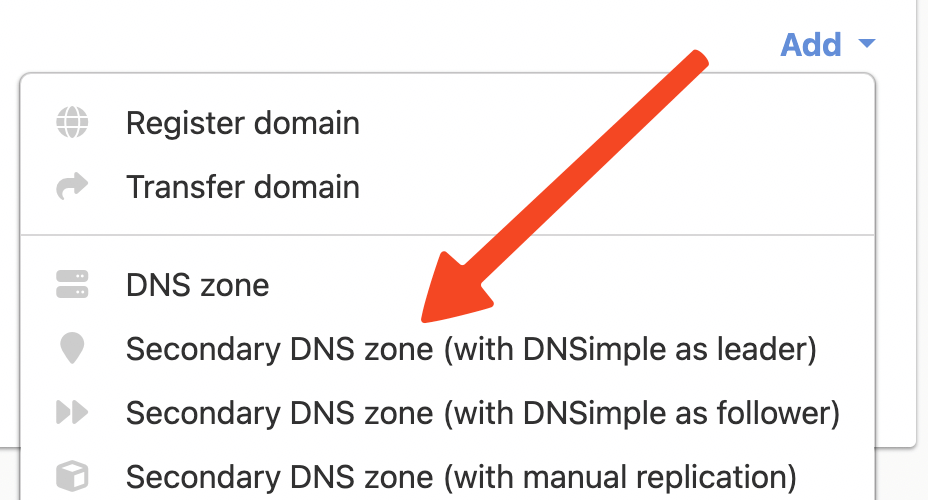
- Choose the provider.
- Enter the .
- Enter the and if you chose custom input.
- Click .
Behind the scenes
After secondary DNS is set up, zone changes on DNSimple are replicated to the secondary provider. Standard records and DNSimple record types such as ALIAS and URL are included; ALIAS and URL are resolved, and the resulting values are what the secondary transfers. See How ALIAS Records Resolve with Secondary DNS.
Until you disable secondary DNS, record changes in DNSimple stay synchronized to the secondary provider over AXFR.
Edit secondary DNS configuration
Change the configuration from the tab using on the Secondary DNS card.
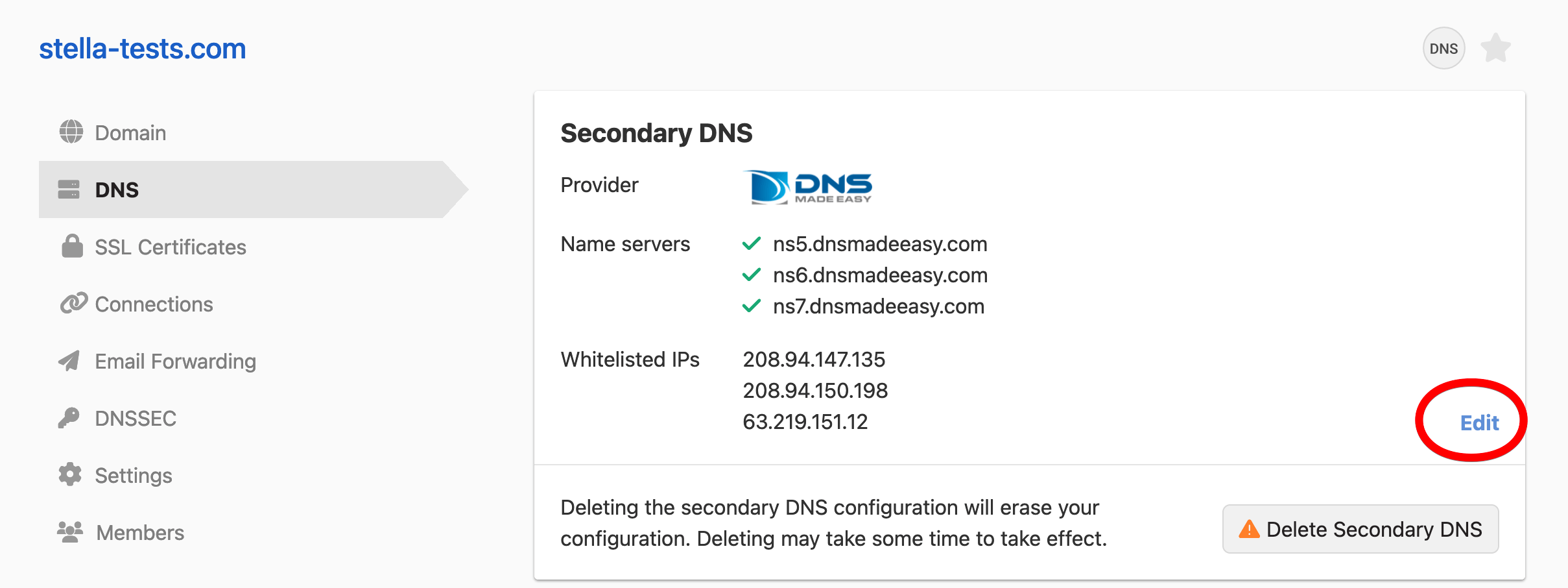
Disable secondary DNS
Click on the Secondary DNS card, then confirm by typing the domain name.
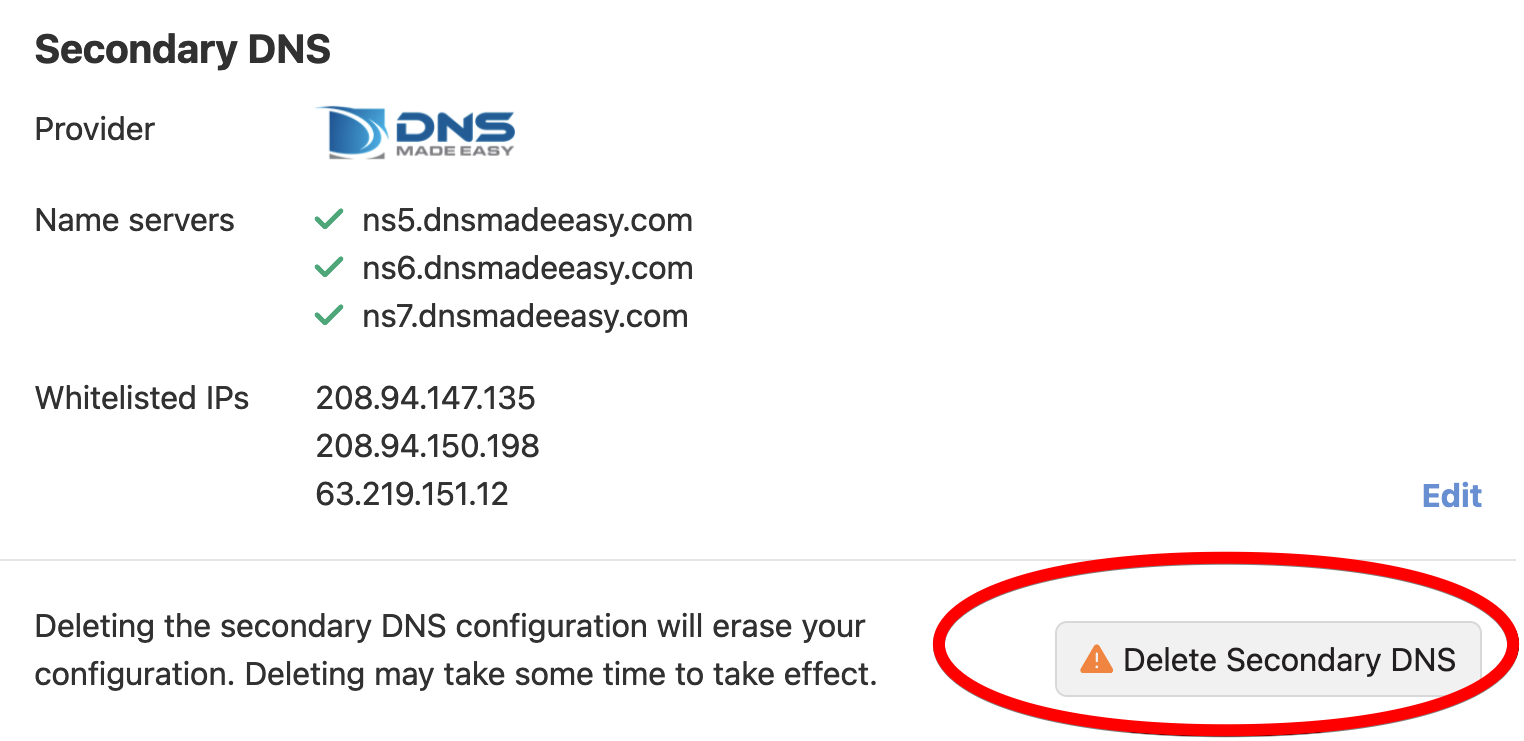
Removal is staged rather than immediate. DNSimple first removes the local configuration, then removes the secondary name servers from your delegation, and only then stops serving zone transfers. The secondary name servers keep answering during that window, so cached NS records can expire before the zone stops being served.
How long the final step waits depends on the domain:
- For a domain, one where DNSimple hosts the zone but does not track the registration, DNSimple continues to serve the configuration for 72 hours after you delete it.
- Otherwise, DNSimple waits for the highest record TTL in your zone, up to a maximum of 72 hours.
The delete confirmation dialog tells you which case applies. If it warns that the configuration will be served for 72 more hours, plan for the full 72 hours.
Warning
If the dialog shows the 72 hour warning, update the name servers at your registrar immediately after deleting the configuration. Until you do, your delegation still lists secondary name servers that are going to stop answering.
Finish removing secondary DNS
- Delete the secondary DNS configuration in DNSimple.
- At your registrar, remove the secondary name servers from the delegation, leaving only the DNSimple name servers.
- At your secondary DNS provider, remove the zone or the secondary configuration for your domain.
AXFR name server details
Give your secondary provider the host that answers AXFR queries.
- Hostname: axfr.dnsimple.com (prefer this when possible)
- IPs:
18.189.127.1272600:1f16:ae2:e902:6881:5f5e:c245:887e
If these IP addresses change, DNSimple will notify you in advance using your account notification email.
Frequently asked questions
-
What is secondary DNS and why would I use it?
Secondary DNS uses zone transfers (AXFR) so another provider can serve the same zone DNSimple hosts as primary. Resolvers can use either provider’s name servers, which adds multi-provider redundancy. See What is Secondary DNS?.
-
Can DNSimple serve as a secondary DNS provider?
Yes. DNSimple can pull zones from an external primary over AXFR (inbound secondary DNS). See Add DNSimple as a secondary DNS server. That feature is available on the Solo Pro, Teams, and Enterprise plans. For syncing without AXFR, see Using DNSimple alongside other DNS providers.
-
How can I check that my secondary DNS configuration is correct?
If you use a prepared provider configuration and still have trouble, contact support. Otherwise use your provider’s documentation and their tools to confirm they can transfer the zone from
axfr.dnsimple.com. -
How can I test that secondary DNS is working?
After the secondary provider confirms AXFR works, query a secondary name server with
dig. For example, ifns5.dnsmadeeasy.comis a secondary:dig @ns5.dnsmadeeasy.com yourdomain.com. Compare the answer to what DNSimple returns. Differences usually mean a misconfiguration or propagation delay. -
Is the order of the name servers relevant?
No. Resolvers select among the published name servers; order in the registrar, WHOIS, NS set, or secondary DNS configuration does not matter.
Have more questions?
If you have any questions about outbound secondary DNS, contact support, and we will be happy to help. You can also read more about secondary DNS at DNSimple.