Adding EasyDNS as a Secondary DNS Server
Last updated
For an overview of secondary DNS, see Add a secondary DNS server to DNSimple.
Requirements
- An active account with EasyDNS. Every EasyDNS plan allows for secondary DNS setup.
- Your domain is pointing to the DNSimple name servers.
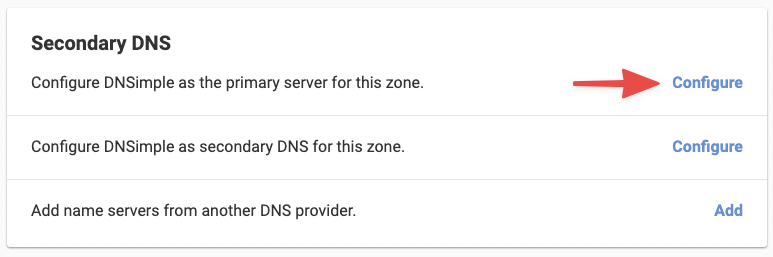
You can get started with secondary DNS from the tab on the domain page.
From DNSimple, select EasyDNS as the provider. Click Enable at the bottom of the form. The name servers and IP addresses that EasyDNS is expecting are already filled in for you.
A confirmation message will tell you that secondary DNS has been enabled from the DNSimple side.

Log in to your EasyDNS account. The first thing you will do is add the domain.
Note
EasyDNS has both a tabbed and one-page view. Your interface may look different depending on the layout you’ve selected, though the instructions below are the same.

Select the option use an existing domain for the domain.

Go through the payment process. All plans support secondary DNS. When you are finished, the domain is added and ready to be managed. Click on manage.

From the DNS Settings tab, you will tell EasyDNS the primary name server. In this case, it is DNSimple. Click on primary NS.

Now add the DNSimple primary server IP address 18.189.127.127, and confirm the changes.
Note
At the time of writing, EasyDNS only accepts IPv4 for secondary DNS.

It can take up to one hour for the first zone transfer. To check if your secondary is configured correctly, select the DNS Settings tab, then click on zone cache. The link shows you what EasyDNS is currently storing in its cache for your zone. This should match your DNS records at DNSimple for all supported record types. If it still does not match after an hour, see Troubleshoot Secondary DNS Zone Transfers.

If everything is working correctly, you should see the DNSimple and EasyDNS name servers.

Another way to verify your configuration is by using dig and querying the EasyDNS name servers. Read more about dig in our overview article.
From your terminal, type the following dig command replacing example.com with your domain:
$ dig @xfr0.easydns.com example.com soa
The query should return all the DNSimple and EasyDNS name servers in the AUTHORITY SECTION.
; <<>> DiG 9.20.24 <<>> @xfr0.easydns.com example.com soa
; (2 servers found)
;; global options: +cmd
;; Got answer:
;; ->>HEADER<<- opcode: QUERY, status: NOERROR, id: 58869
;; flags: qr aa rd; QUERY: 1, ANSWER: 1, AUTHORITY: 5, ADDITIONAL: 2
;; WARNING: recursion requested but not available

;; OPT PSEUDOSECTION:
; EDNS: version: 0, flags:; udp: 1232
;; QUESTION SECTION:
;example.com.    IN  SOA

;; ANSWER SECTION:
example.com. 3600  IN  SOA axfr.dnsimple.com. admin.dnsimple.com. 1788969600 86400 7200 604800 300

;; AUTHORITY SECTION:
example.com. 3600  IN  NS  ns1.dnsimple-edge.com.
example.com. 3600  IN  NS  ns2.dnsimple-edge.net.
example.com. 3600  IN  NS  ns3.dnsimple-edge.io.
example.com. 3600  IN  NS  ns4.dnsimple-edge.org.
example.com. 3600  IN  NS  xfr0.easydns.com.

;; ADDITIONAL SECTION:
xfr0.easydns.com. 300 IN  A 64.68.200.91

;; Query time: 192 msec
;; SERVER: 64.68.200.91#53(xfr0.easydns.com) (UDP)
;; WHEN: Wed Sep 09 16:01:51 UTC 2026
;; MSG SIZE  rcvd: 281
Your secondary DNS is now working with EasyDNS.
Have more questions?
If you have any questions about adding EasyDNS as a secondary DNS server, contact support, and we’ll be happy to help. You can also read more about secondary DNS at DNSimple.