DNSimple Record Editors: Simple vs. Field-Specific
Last updated
For some record types, the DNSimple record editor offers two ways to enter a record: the Simple editor, with a single Content field, and the Record fields editor, with a separate field for each part of the record. Both create the same record. This reference covers which record types have both editors, how each one works, and how to switch between them.
Which record types have both editors
The Record fields editor and Simple editor tabs appear when you add or edit these record types:
Other record types, such as A, CNAME, MX, and TXT, have one form with the fields that type needs. For example, an MX record has Mail Server Host and Priority fields, and a TXT record has a Content field.
The simple editor: flexible for pasting
The simple editor asks for three things:
-
Name: The hostname for the record (e.g.,
www,blog,_dmarc).- Leave it blank to configure a record for the root domain (e.g.,
example.com). - Enter the subdomain part for a specific hostname (e.g.,
subdomain). - You can also enter an
*for a wildcard record, which matches any subdomain not explicitly defined.
- Leave it blank to configure a record for the root domain (e.g.,
- Content: A single text field for the whole record value, in the same order as the record’s zone file format.
- TTL (Refresh Rate): How long resolvers can cache the record. It defaults to 1 hour. To learn more about TTL, see What Is Time-to-Live?.
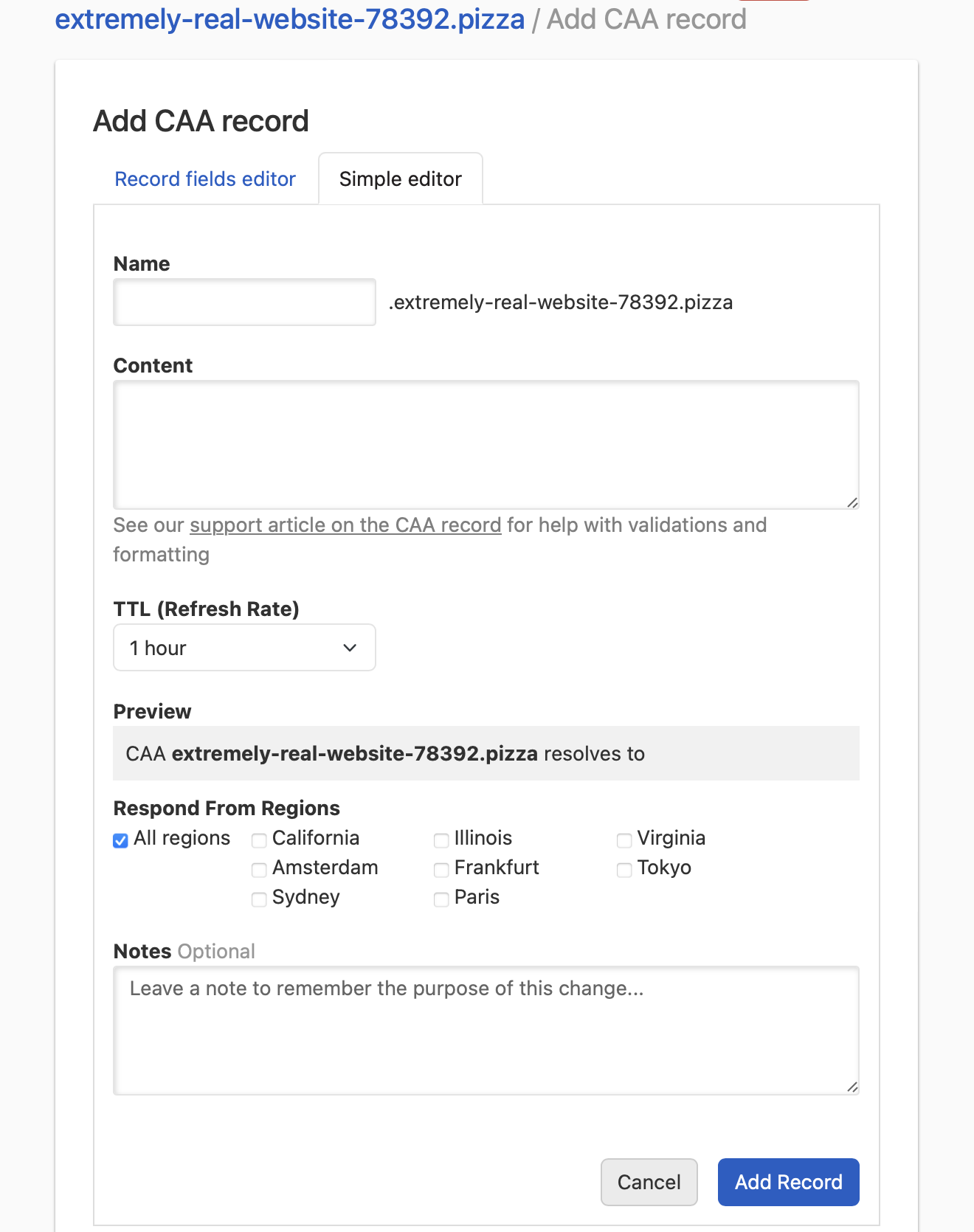
When to use the simple editor
Use the simple editor when a service gives you the full record value as one string. For example, you can paste a CAA value like 0 issue "letsencrypt.org" into the Content field without splitting it into its parts.
It is also the way to enter a value the record fields editor does not list, such as an Ed448 (6) SSHFP algorithm.
The record fields editor: guided input for complex records
The record fields editor breaks the record’s value into separate fields. For example, an SRV record has Service, Protocol, Priority, Weight, Port, and Target fields, and a CAA record has Tag and Value fields. Fields with a fixed set of values, such as the SSHFP algorithm or the TLSA certificate usage, are lists you choose from.
When to use the record fields editor
This editor is useful when:
- You are building the record yourself: Each field takes one part of the record, so you do not need to know the order or quoting rules of the record format. See SRV Record Format and Components Reference and CAA Record Format and Policy Tags for what each field means.
- You want errors tied to a field: When you save the record, DNSimple checks it and shows any error next to the field that has the problem.
Switching between editors
Switch editors with the Record fields editor and Simple editor tabs at the top of the form. Each tab is a separate form: what you type in one tab is not copied to the other, and DNSimple saves the record from the tab where you click (or when editing).
When you edit an existing record, the form opens in the record fields editor with the value split into fields if DNSimple can parse it. If it cannot, the form opens in the simple editor with the value in the Content field.
Why DNSimple offers both editors
The simple editor is quickest when you already have the full value, for example from a provider’s setup instructions. The record fields editor helps when you build a record part by part. For a complete list of supported DNS record types, see Supported DNS Records and DNS Record Types.
Have more questions?
If you have additional questions or need any assistance with your DNS records, just contact support, and we will be happy to help. You can also read more about DNS hosting at DNSimple.