Manage CAA Records
Last updated
Table of Contents
- Record fields editor and simple editor
- Adding a CAA record
- Updating a CAA record
- Removing a CAA record
- Have more questions?
You can manage CAA records in DNSimple using the DNS record editor.
The instructions in this article assume you are familiar with the CAA record format and usage.
Record fields editor and simple editor
The CAA form has two tabs:
- Record fields editor (the default) has separate fields for the tag and value.
-
Simple editor has a single Content field, where you enter the whole record value, for example
0 issue "letsencrypt.org". Use it if you are copying a CAA record from another provider.
For more about the two editors, see Understand DNSimple’s Record Editors: Simple vs. Field-Specific.
Adding a CAA record
To add a CAA record
- If you have more than one account, select the relevant one from the account switcher at the top-right corner of the screen.
- On the header, click the tab.
- Locate the relevant domain, and click on the name to access the domain page.
- Click at the top right of the domain page.
- Click , and select .
-
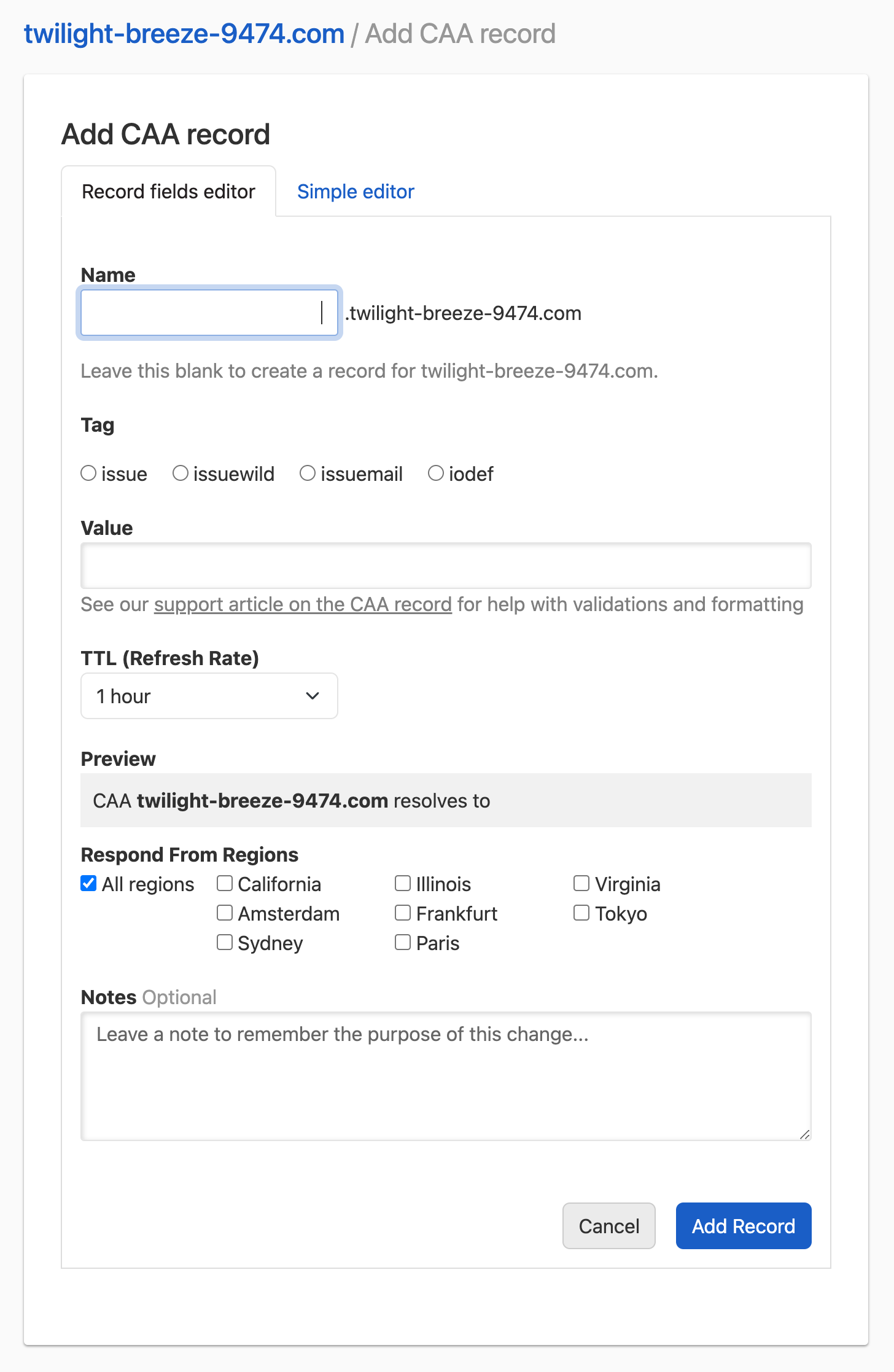
On the tab, enter the CAA record information.
-
Name: the subdomain you want to create the record for, without the domain name. For example, if you want to represent
www.example.comenterwww. Leave it blank to represent the root domainexample.com. -
Tag: what the record controls:
-
issue: a certificate authority (CA) allowed to issue certificates, for exampleletsencrypt.orgorsectigo.com. -
issuewild: a CA allowed to issue wildcard certificates. -
issuemail: a CA allowed to issue email (S/MIME) certificates. -
iodef: where CAs report requests that break your policy, for examplemailto:security@example.com. -
contactemailandcontactphone: an email address or phone number CAs can use to contact you about domain validation.
-
- Value: the value for the tag you chose. See the CAA record format for the exact syntax.
As with any other DNS record, you can configure:
- TTL (Refresh Rate): the record time-to-live.
- Respond From Regions: Configure Regional Records if desired.
- Notes: Optionally include a record note.
Once you are ready, click .
-
Name: the subdomain you want to create the record for, without the domain name. For example, if you want to represent
-
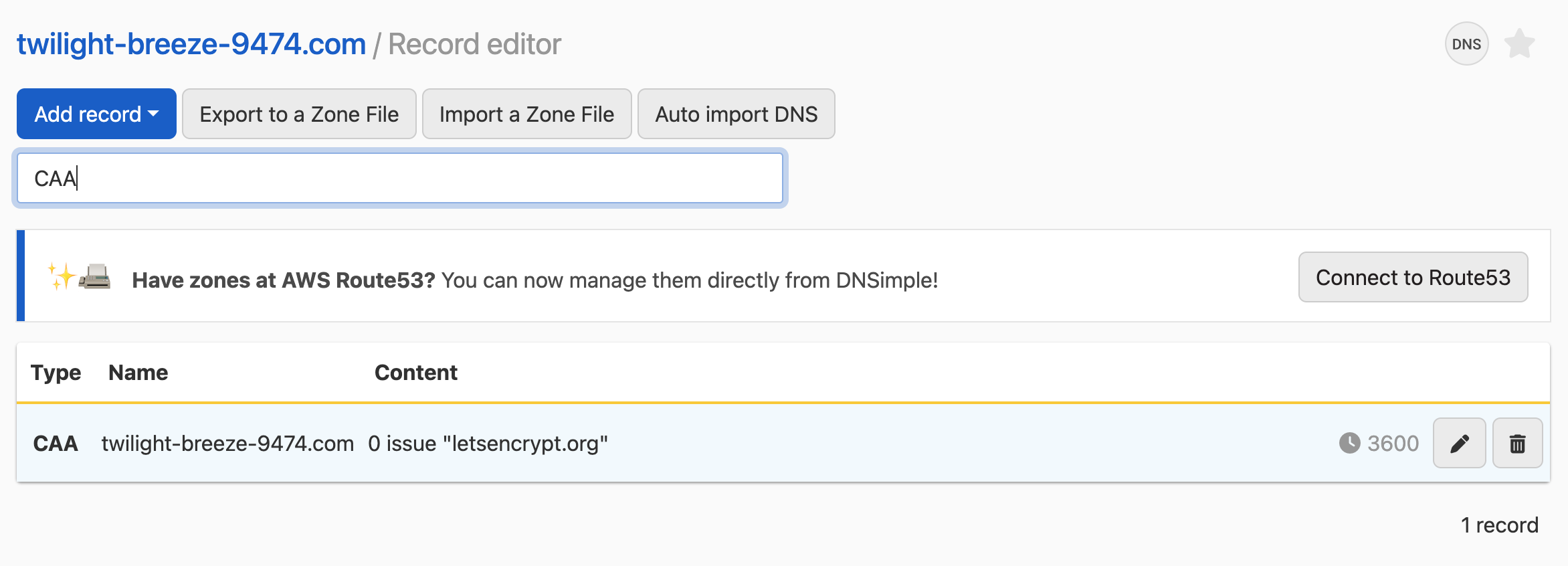
The record editor opens with the message , and the new record is in the list.
Note
Some hosting providers label fields differently than DNSimple does, which can be confusing if you are copying DNS settings from another provider.
- In DNSimple, Name = what others might call Host.
Updating a CAA record
To update a CAA record
- If you have more than one account, select the relevant one from the account switcher at the top-right corner of the screen.
- On the header, click the tab.
- Locate the relevant domain, and click on the name to access the domain page.
- Click at the top right of the domain page.
- Locate the CAA record you want to update in the list.
-
Click the three-dot actions menu at the end of the record row, then select .
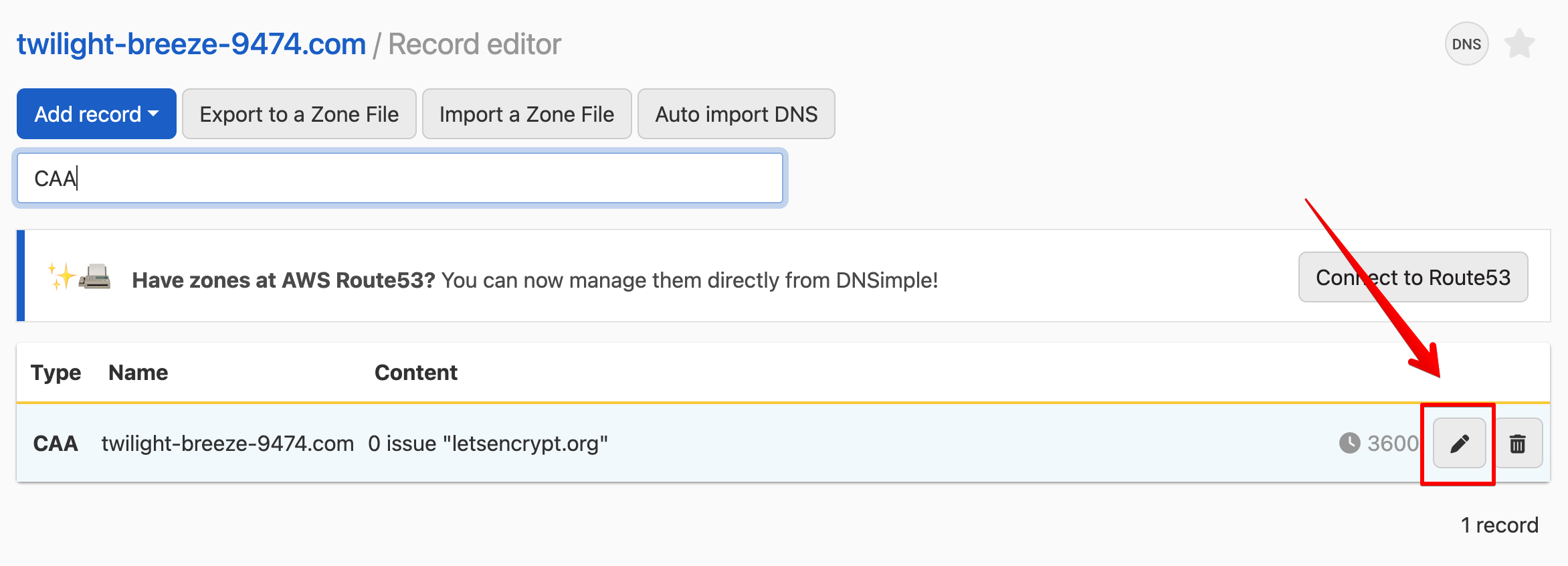
- Update the information and click to save the record.
Removing a CAA record
To remove a CAA record
- If you have more than one account, select the relevant one from the account switcher at the top-right corner of the screen.
- On the header, click the tab.
- Locate the relevant domain, and click on the name to access the domain page.
- Click at the top right of the domain page.
- Locate the CAA record you want to remove in the list.
-
Click the three-dot actions menu at the end of the record row, then select .
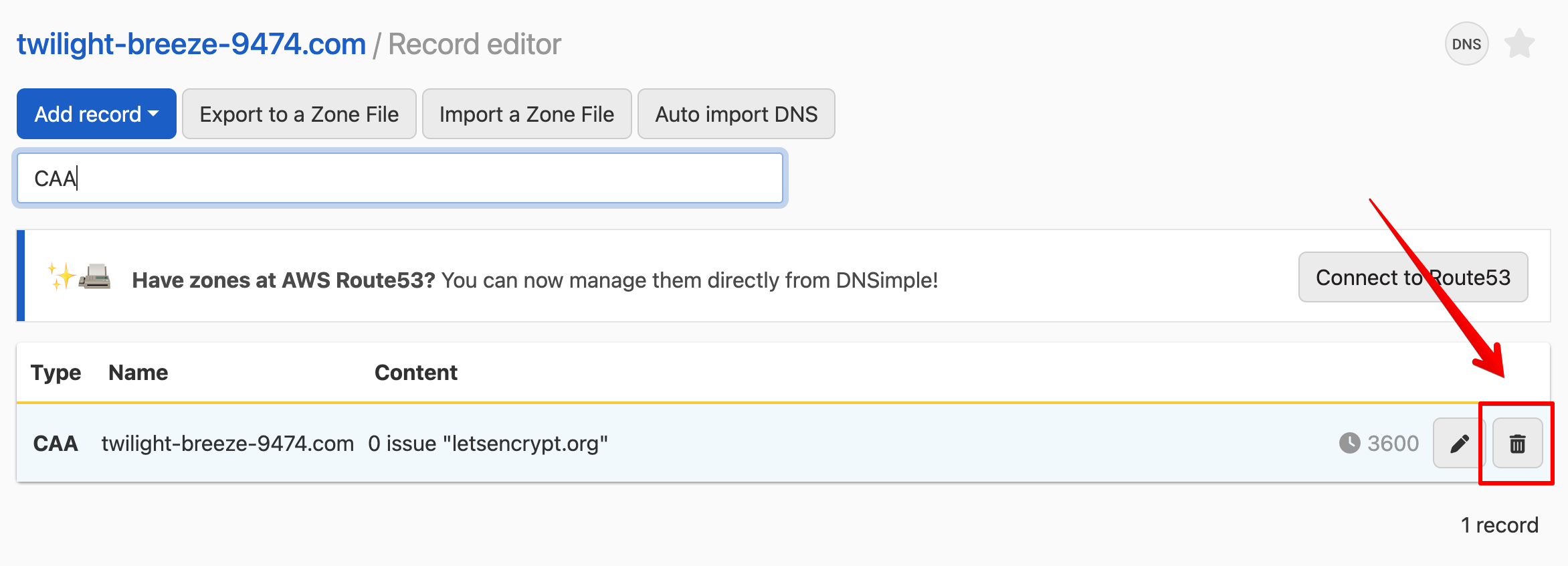
- In the dialog, add a note if you want to record why, then click .
Have more questions?
If you have additional questions or need any assistance with your CAA records, just contact support, and we will be happy to help. You can also read more about DNS hosting at DNSimple.