Change delegation to another DNS provider
Last updated
Table of Contents
To use another DNS provider for a domain registered with DNSimple, open the domain’s tab, click , and enter the name servers your DNS provider gave you. This changes the domain’s delegation: which name servers are authoritative for it.
If your domain is not registered at DNSimple, update name servers at your current registrar.
If you want DNS hosted by DNSimple, follow Pointing a Domain to DNSimple so you follow the right steps for your registration setup.
For vocabulary (delegation versus records in your zone), see What Is Domain Delegation?. For what authoritative name servers do, see What is a Name Server?.
Change delegation to another DNS provider
After delegation points to another provider, the domain resolves using that provider’s DNS. Records in your DNSimple account are not used for public DNS until delegation points back to DNSimple.
To change delegation to another provider
- If you have more than one account, select the relevant one.
-
On the header, click the tab, locate the relevant domain, and click on the name to access the domain page.
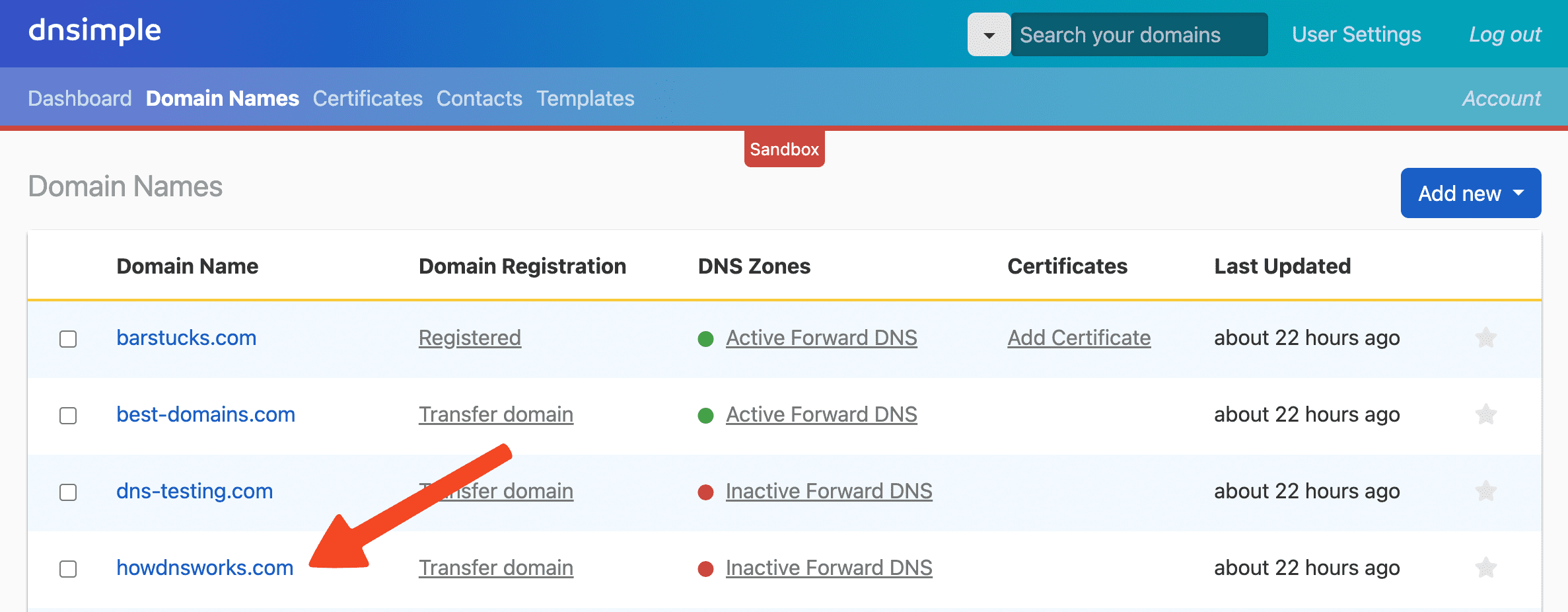
- Click on the left sidebar.
-
On the card, click .
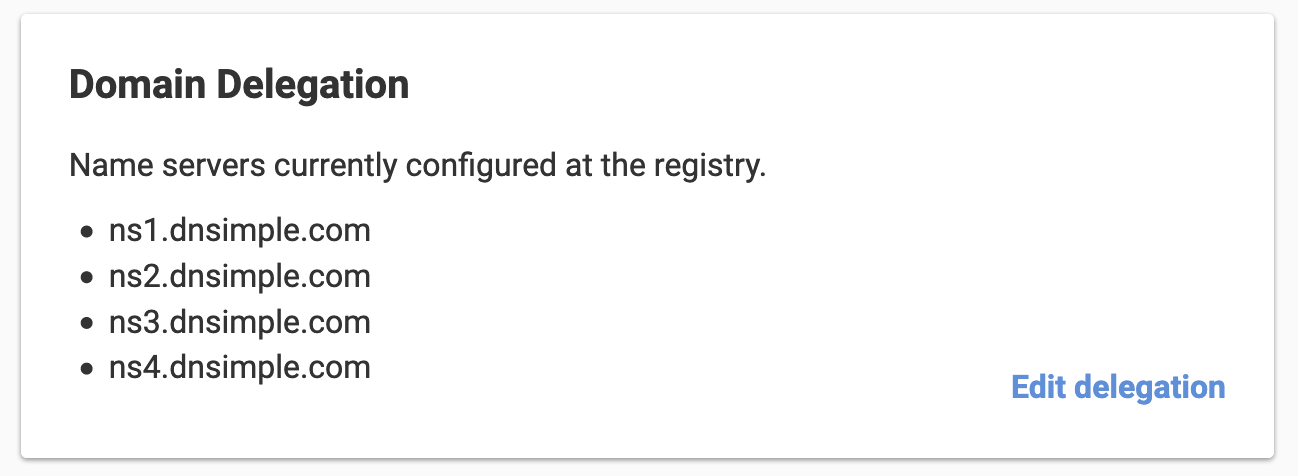
-
Enter the hostnames of the name servers you want to use. Click for another row.
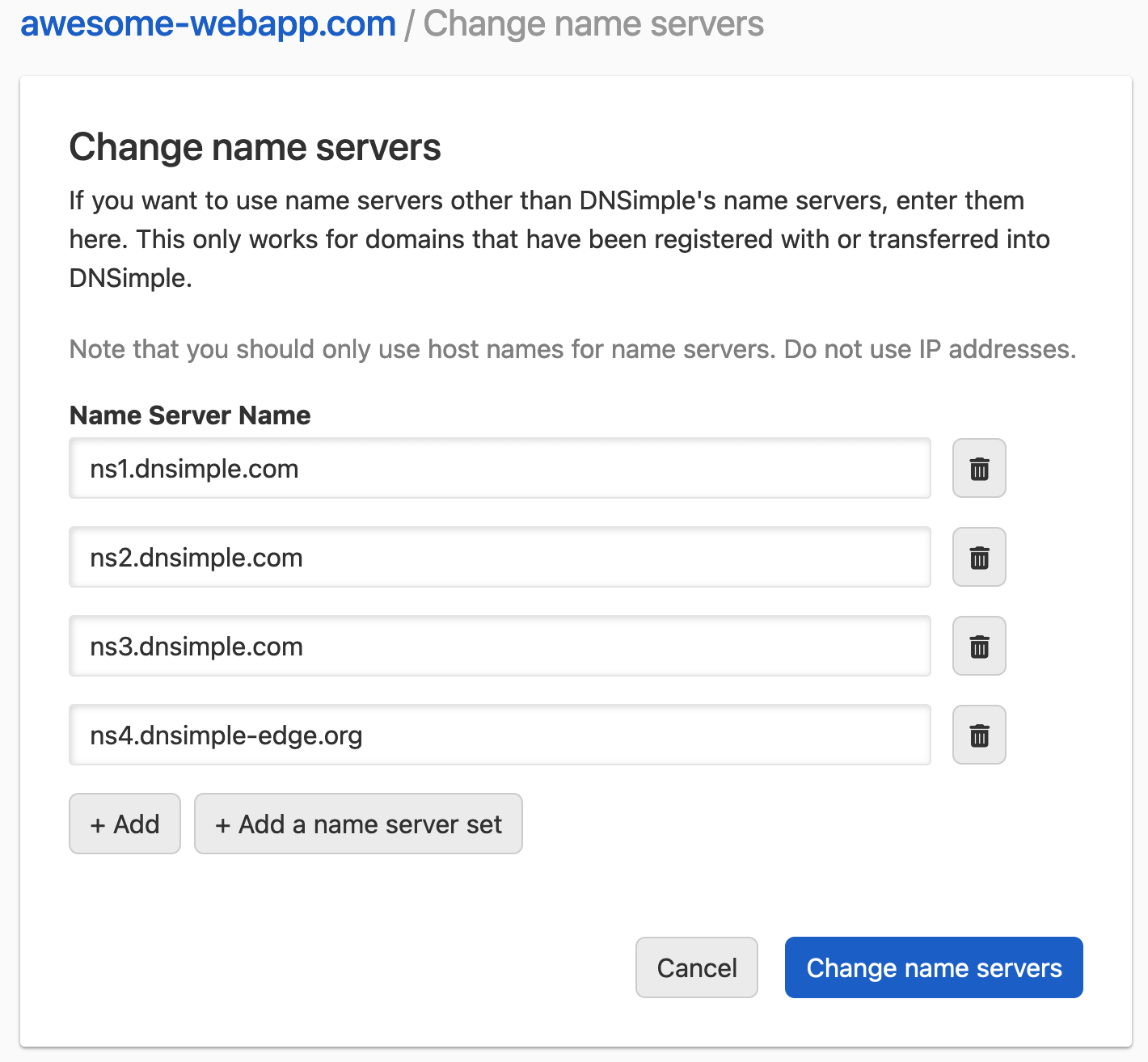
-
Instead of entering hostnames manually, you can click to select a name server set.
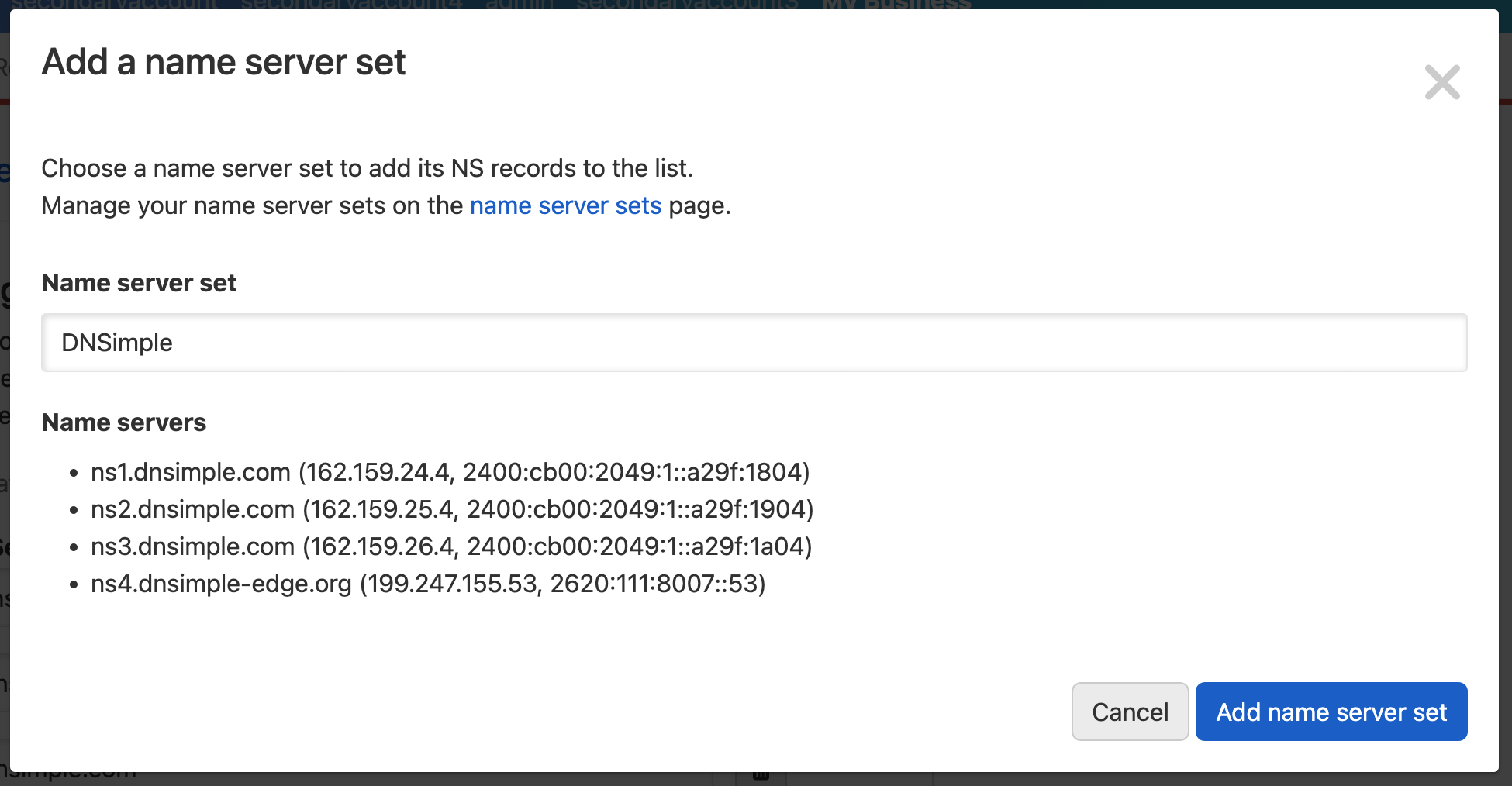
- Click to apply the changes.
Note
DNSimple’s listing of NS records for the domain will be updated to match the name server changes.
Note
If the name server hostname uses the same domain you are delegating, for example ns1.example.com for example.com, the registry needs glue records so resolvers can find the name server’s IP address. DNSimple can create glue at the registry when the server is defined in a name server set that includes the glue IP addresses. For more detail, see What Are Glue Records?. This situation also applies to vanity name servers.
Reserved name servers
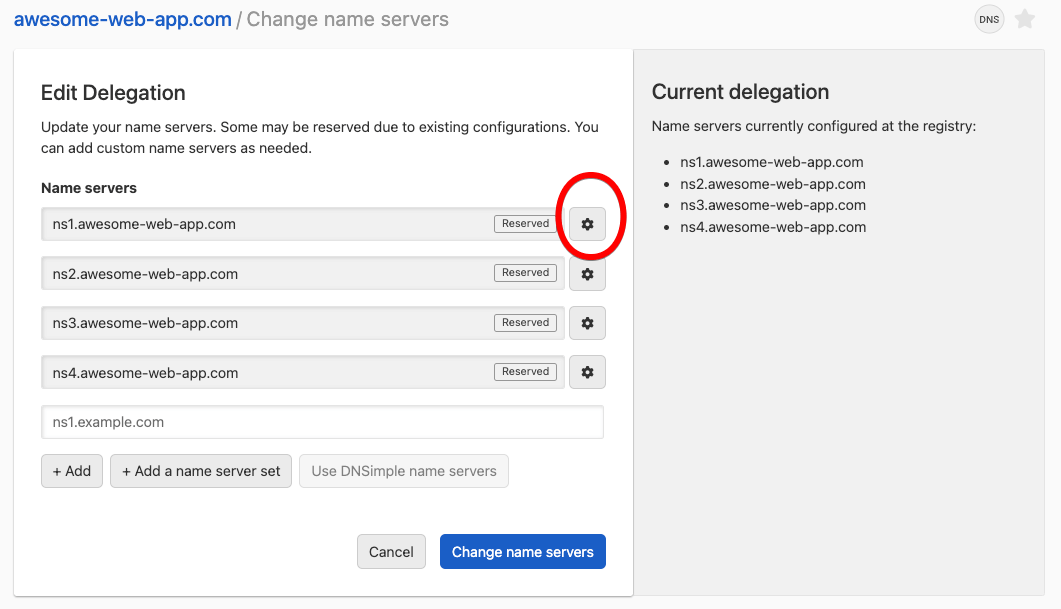
If you use Secondary DNS or Vanity Name Servers, name servers from those configurations are reserved. You cannot edit or remove them through Edit delegation alone.
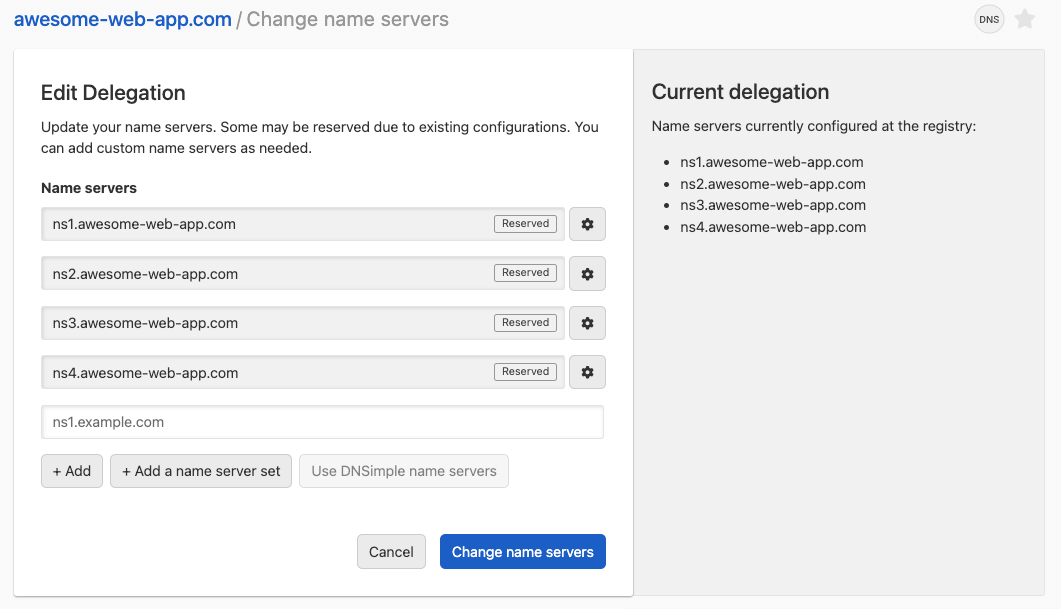
Click the configuration icon next to a reserved entry to open Secondary DNS or Vanity Name Servers and change the configuration there.
Have more questions?
If you have further questions or need help with delegation or name servers, contact support, and we will be happy to help. You can also read more about DNS hosting at DNSimple.