How to Set Up Email Forwarding
Last updated
Table of Contents
- Prerequisites
- Set up email forwarding for your domain
- What happens next
- Internationalized Domain Names (IDN) support
- Common considerations
- Have more questions?
To set up email forwarding, open the domain’s tab and create its first email forward. That turns on email forwarding for the domain, at $2 per domain per month, and DNSimple adds the DNS records it needs. Check the prerequisites below first.
Prerequisites
You must be subscribed to a plan to use email forwarding. It costs $2 per domain per month.
The number of email forwards and forwarded messages allowed per domain depends on your plan: Solo includes up to 10 email forwards and 1,000 messages per month, Solo Pro up to 15 email forwards and 5,000 messages, and Teams up to 25 email forwards and 10,000 messages. See Email Forwarding Limits and Quotas for details.
The domain must be delegated to DNSimple’s name servers, and its DNS zone must be active. If the domain uses another DNS provider, the forwarding records DNSimple adds are never seen. See Pointing a Domain to DNSimple.
Warning
Email forwarding is not supported for domains with a secondary zone. To configure email forwards, you must first convert the zone to a forward zone (primary zone).
Set up email forwarding for your domain
Set up email forwarding for a domain
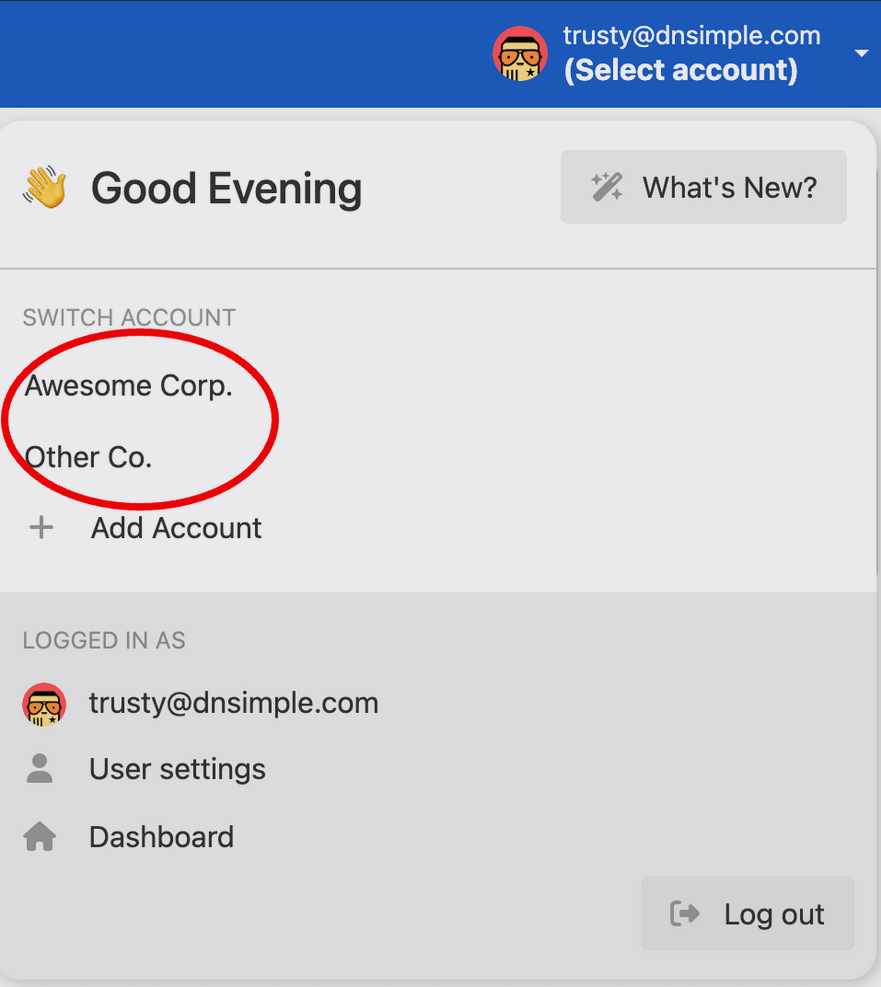
- Use the account switcher at the top of the page to select the appropriate account.
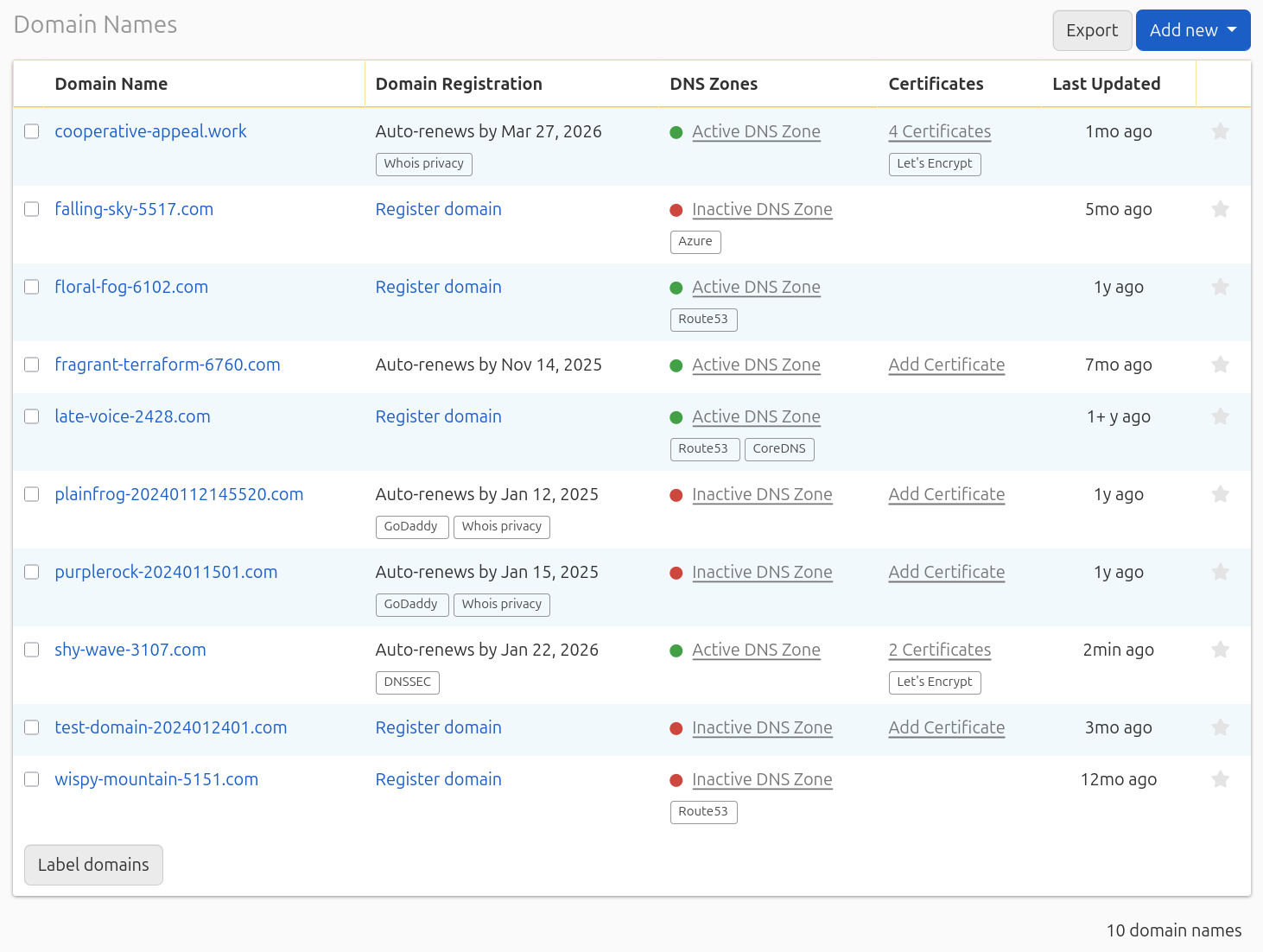
- On the header, click the tab, and click the name of the domain you want to set up email forwarding on.
- Click on the left side of the domain page. The page shows the price and your plan’s limits for the domain.

- Click .
- Under , select and enter the part of the address before the @ (e.g.,
helloforhello@yourdomain.com), or select . - In the field, enter the full email address where you want messages to be forwarded.
- Click .
For more on the form, including catch-all forwards, see How to Add and Remove Email Forwards.
Warning
Creating the first email forward deletes the domain’s other MX records at the root of the zone. If you use another email provider (such as Google Workspace or Microsoft 365), that service stops receiving your email. If the domain has MX records, the tab lists them before you click , so you can check what will be deleted.
Note
To see how to create email forwards with the API, check out our developer documentation.
What happens next
Once you create your first email forward:
- DNSimple adds the forwarding MX records to the domain’s zone and deletes any other MX records at the root.
- DNSimple adds the forwarding service to the domain’s SPF record. If the domain already has an SPF record, DNSimple merges the forwarding service into it.
- Email forwarding is billed at $2 per month for the domain. Charges stop when you delete all of the domain’s email forwards.
- Email sent to the forwarded address starts arriving at your destination address.
- You can create more email forwards, up to your plan’s limit for the domain.
Internationalized Domain Names (IDN) support
The email forwarding provider does not support International Domain Names (domains with non-standard characters). You cannot use an email address with an IDN domain as a destination or to configure email forwards for an IDN domain.
Common considerations
Email hosting compatibility: When you use email forwarding on a domain, you cannot use another email provider (for example Google Workspace) for that domain at the same time. Email forwarding and email hosting both use the domain’s MX records, so mail can only go to one of them. See Manage MX Records When Changing Email Providers.
Secondary zones: Email forwarding requires a primary (forward) zone. If your domain uses a secondary zone, you will need to convert it to a primary zone before you can set up email forwarding.
DNS propagation: DNSimple serves the new MX records as soon as you create the email forward. Resolvers that cached the old MX records keep using them until their TTL runs out, which is 1 hour for records created in DNSimple with the default TTL.
Testing: After setting up email forwarding, test it by sending an email to the forwarded address from a different email account. The email should arrive at your destination address. If it does not, see Email Forwarding Not Working.
Have more questions?
If you have any questions or need assistance setting up email forwarding, contact support, and we will be happy to help. You can also read more about email forwarding at DNSimple.