Manage URL Records
Last updated
Table of Contents
You can manage URL records in DNSimple using the DNS record editor.
The instructions in this article assume you are familiar with the URL record format and usage.
Adding a URL record
Note
To redirect HTTPS requests as well as HTTP, you need a Solo Pro plan or higher and an SSL certificate for the same host name. Issue the certificate before you add the URL record. If you add the record first, visitors who use https:// get a connection error until the certificate is ready. Learn more about HTTPS redirects.
To add a URL record
- If you have more than one account, select the relevant one from the account switcher at the top-right corner of the screen.
- On the header, click the tab.
- Locate the relevant domain, and click on the name to access the domain page.
- Click at the top right of the domain page.
-
Click , and select .
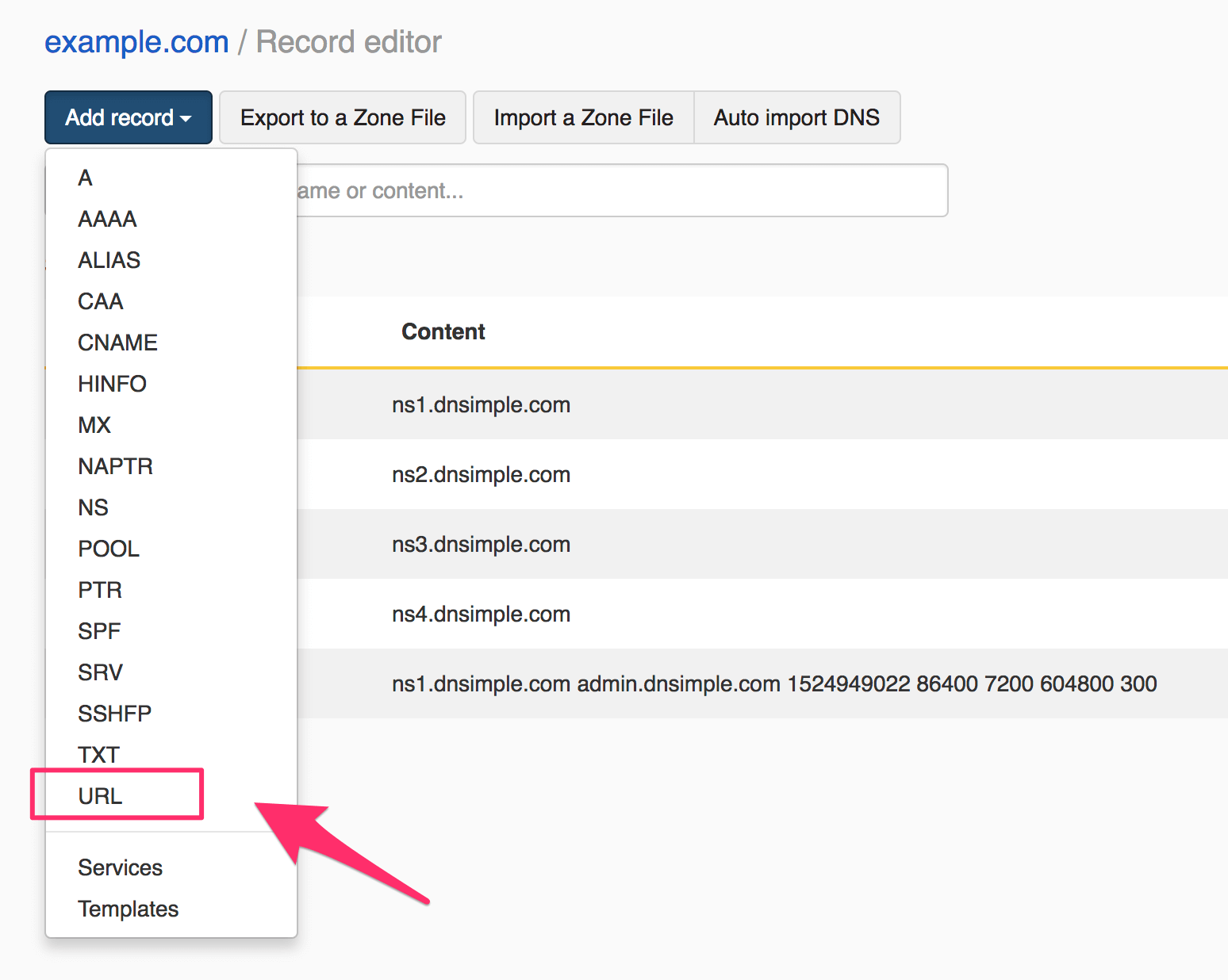
-
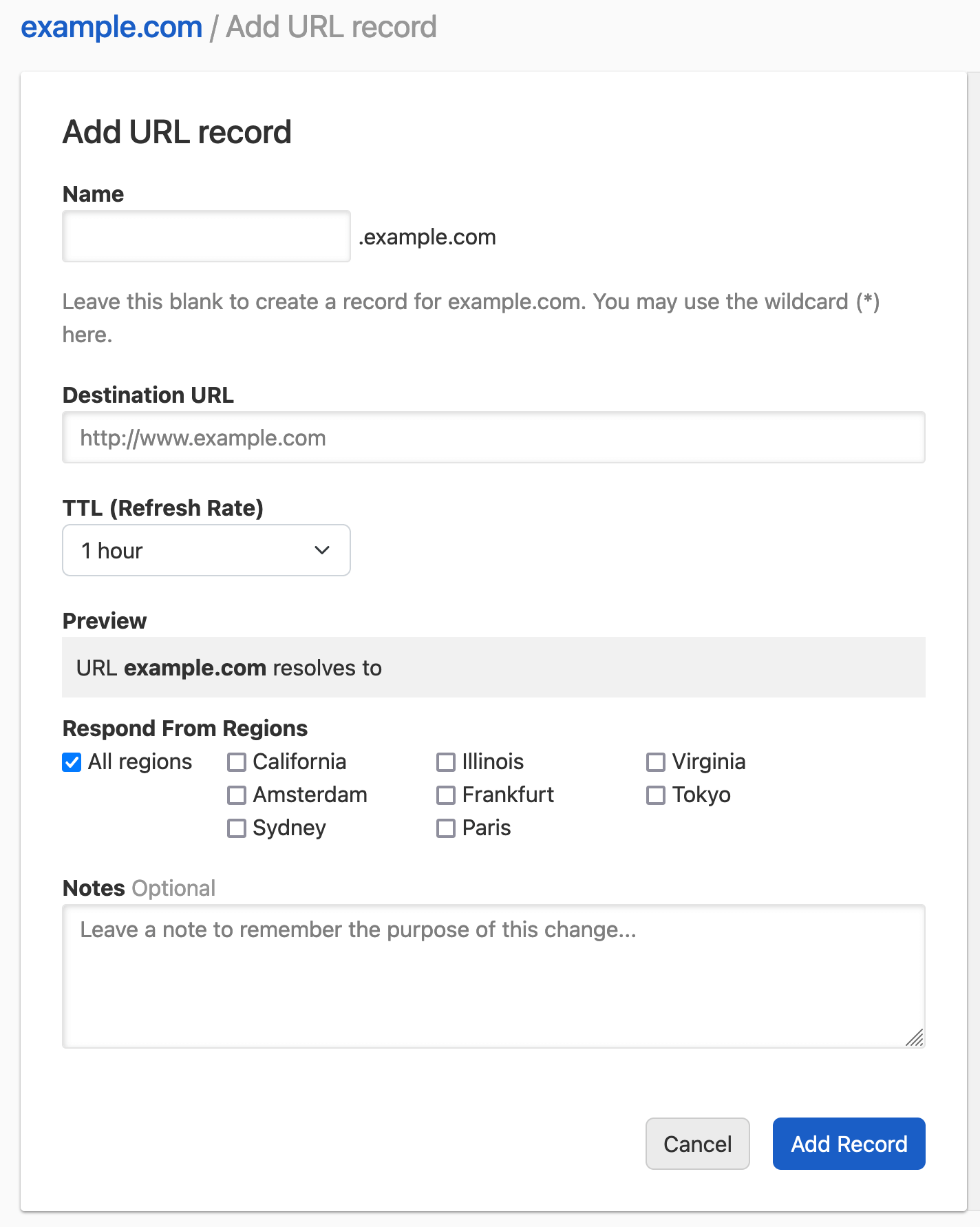
Enter the URL record information.
-
Name: The subdomain you want to redirect, without the domain name. For example, if you want to redirect
www.example.comenterwww. Leave it blank to redirect the root domainexample.com. -
Destination URL: The redirect target. It must start with
http://orhttps://(for example,https://blog.example.com). It can also contain a path, query, and any other standard URL components (for example,https://blog.example.com/path/to/site?redir=1).
As with any other DNS record, you can configure:
- TTL (Refresh Rate): The record time-to-live.
- Respond From Regions: Configure Regional Records if desired.
- Notes: Include a record note (optional).
Once you are ready, click .
-
Name: The subdomain you want to redirect, without the domain name. For example, if you want to redirect
-
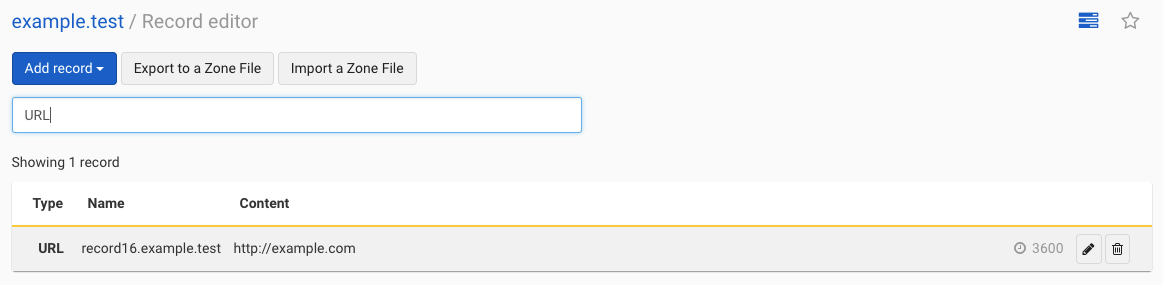
The record editor opens with the message , and the new record is in the list.
Updating a URL record
To update a URL record
- If you have more than one account, select the relevant one from the account switcher at the top-right corner of the screen.
- On the header, click the tab.
- Locate the relevant domain, and click on the name to access the domain page.
- Click at the top right of the domain page.
- Locate the URL record you want to update in the list.
-
Click the three-dot actions menu at the end of the record row, then select .
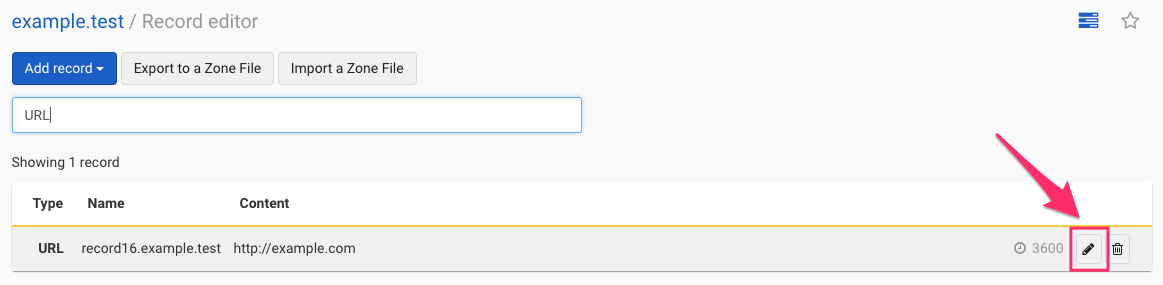
- Update the information and click to save the record.
Removing a URL record
To remove a URL record
- If you have more than one account, select the relevant one from the account switcher at the top-right corner of the screen.
- On the header, click the tab.
- Locate the relevant domain, and click on the name to access the domain page.
- Click at the top right of the domain page.
- Locate the URL record you want to remove in the list.
-
Click the three-dot actions menu at the end of the record row, then select .
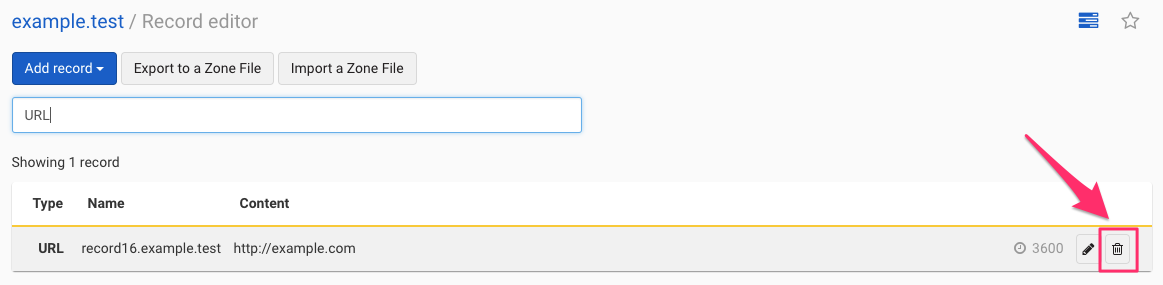
- In the dialog, add a note if you want to record why, then click .
Have more questions?
If you have any questions or need assistance managing URL records, contact support, and we will be happy to help. You can also read more about DNS hosting at DNSimple.