DNSimple Interface Reference for DNS Management
Last updated
This document provides a visual reference for key pages related to DNS management in the DNSimple interface. Each screenshot is labeled with numbers that correspond to an explanation of that feature or element.
Record Editor
The Record Editor is where you manage your domain’s DNS records. You can add, edit, or delete records from this page.
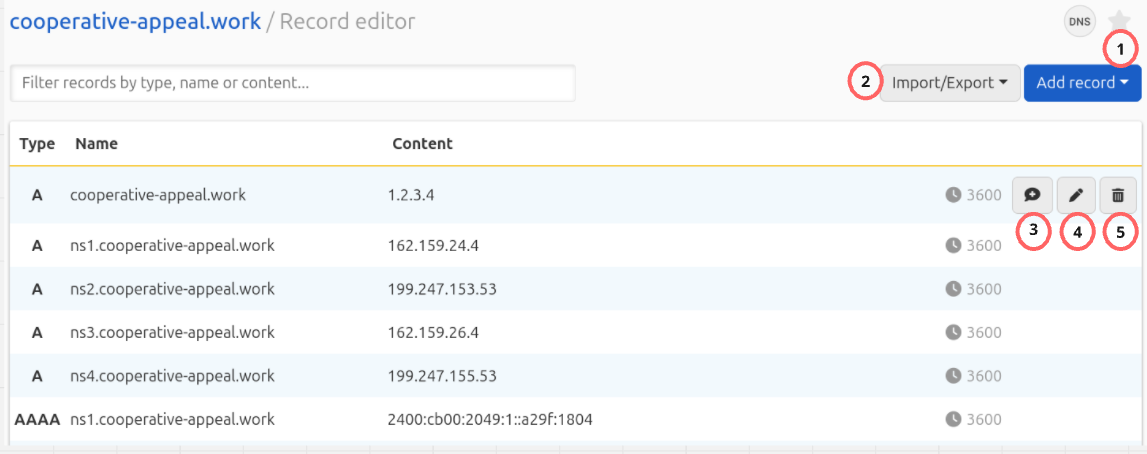
- Add record: Click this button to create a new DNS record.
- Import/Export: Click this button to import your zone file from another provider or to export a copy of your DNSimple zone file.
- Record actions: The … menu at the end of a record row holds the actions for that record: Add note (shown as View note if the record already has one), Edit, and Delete.
DNS tab
The DNS tab on your domain’s management page provides an overview of your DNS zone and access to key features.
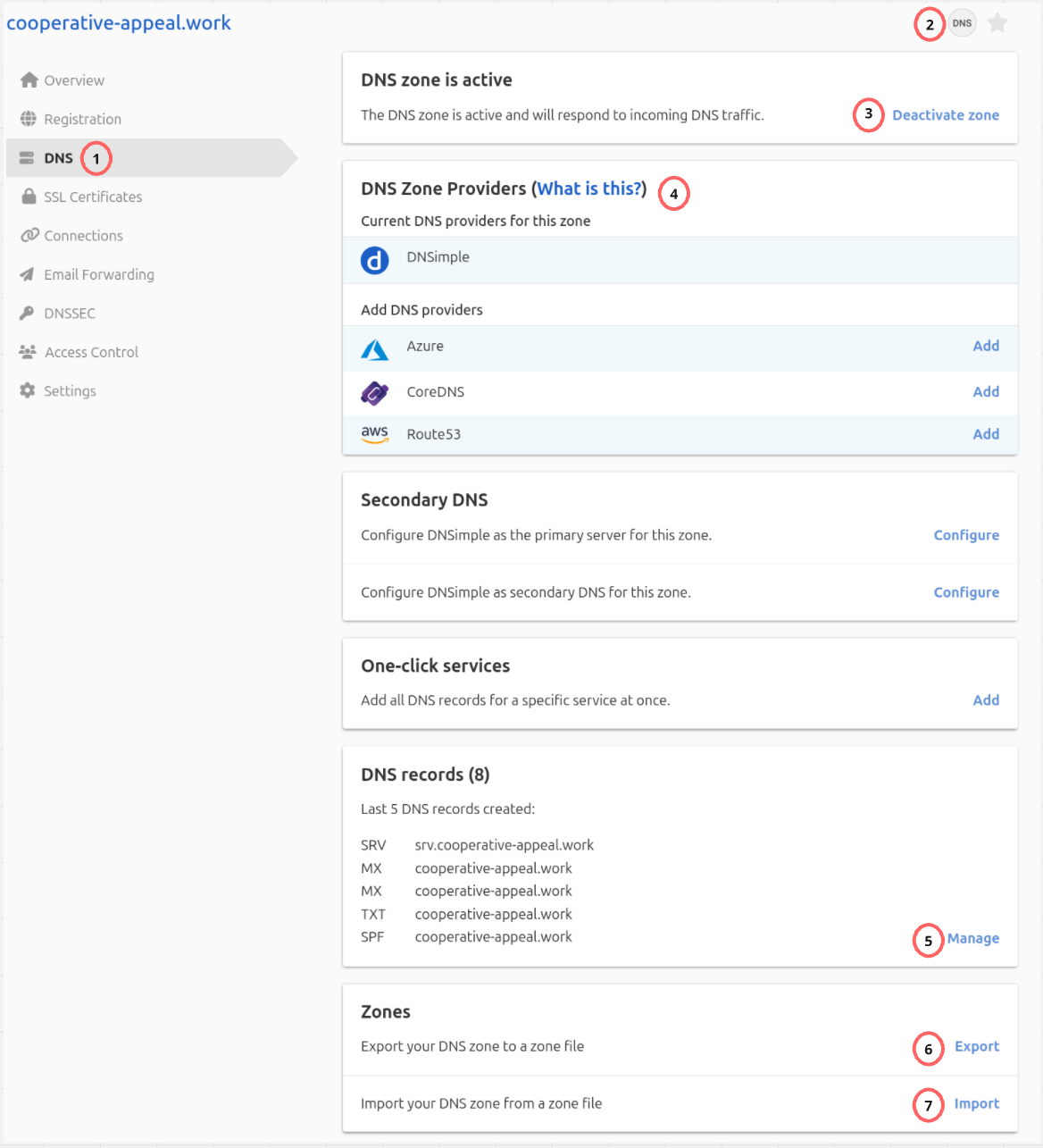
- DNS: This tab shows the status of your DNS zone and provides access to other DNS features.
- Record editor: This button opens the Record Editor, where you can manage your domain’s DNS records.
- Deactivate zone: This button shows if your DNS zone is active.
- DNS Zone Providers: This card shows your current DNS providers and provides options to add other Integrated DNS Providers.
- Manage DNS records: This link opens the Record Editor, where you can manage your domain’s DNS records.
- Export: Click this button to export your zone file. A download will initiate.
- Import: Click this button to import a zone file.
Import zone
The Import zone page allows you to import your zone file from another provider.
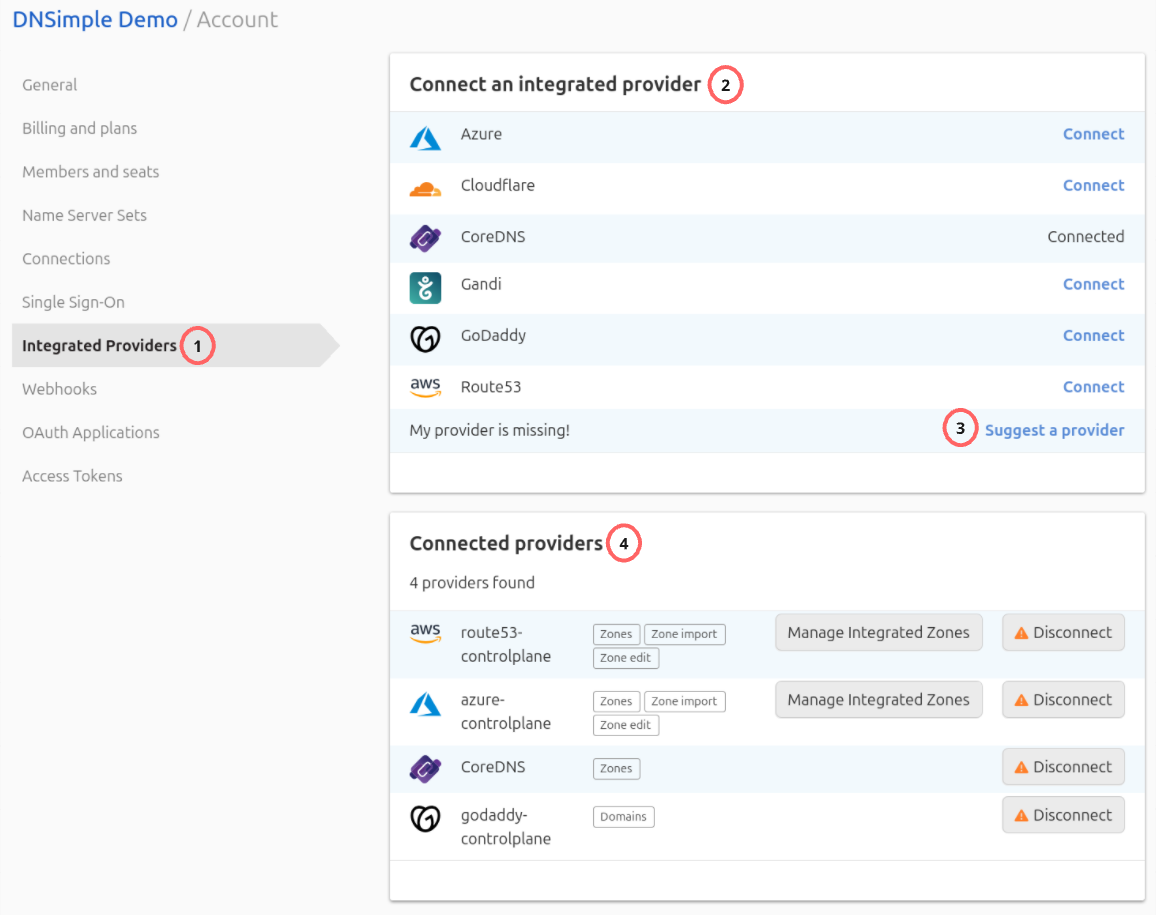
- Zone Data: This field is where you paste the zone file data.
- Import Zone: Click this button to import your zone file.
Integrated Providers
The Integrated Providers page in your account settings allows you to connect and manage external DNS providers.
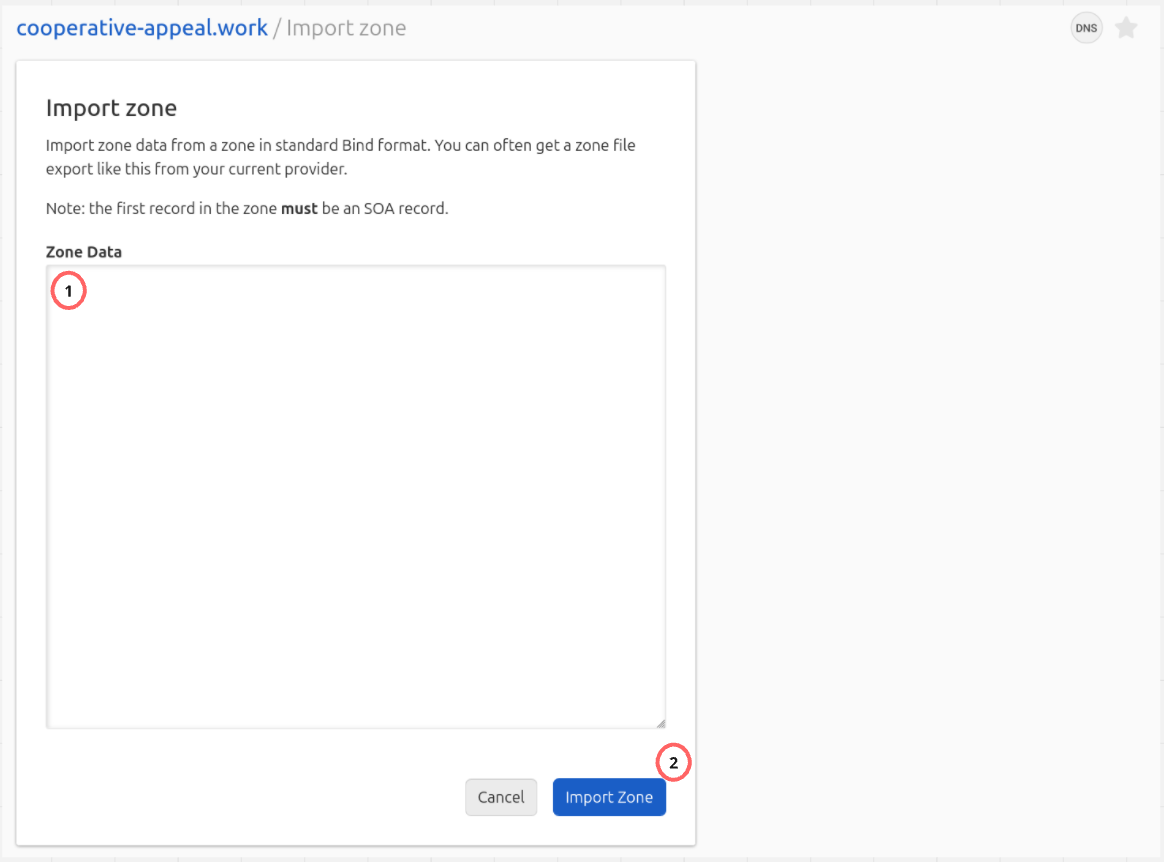
- Integrated Providers: This tab shows the status of your integrated providers.
- Connect an integrated provider: This card shows a list of providers you can connect to.
- Suggest a provider: Click this link to suggest a provider that is not on the list.
Once you connect a provider, a Connected providers card also appears on this page. It shows a list of providers you are already connected to.
Integrated DNS Provider on Domain Names Page
The Domain Names page provides an overview of all your domains and their DNS zone status.
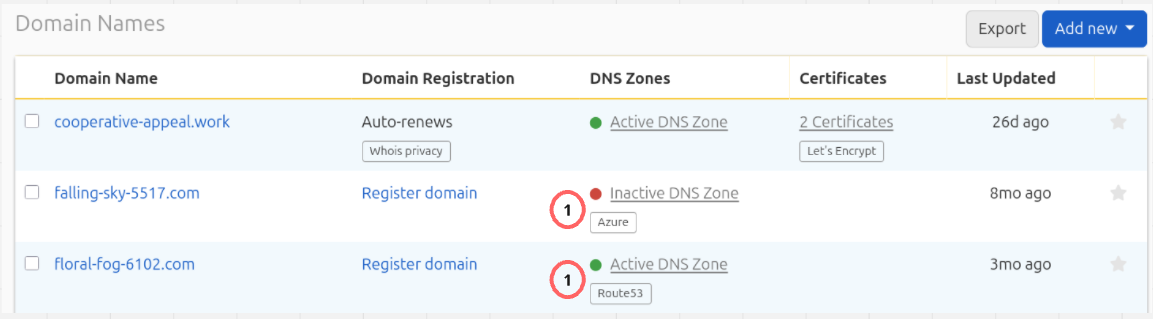
- DNS Zones: This column shows the status of your DNS zone and the provider it is integrated with, if it has one.
Have more questions?
If you have additional questions or need any assistance, just contact support, and we will be happy to help. You can also read more about DNS hosting at DNSimple.