DNSSEC Management in DNSimple
Last updated
You manage DNSSEC for each domain on its tab. That’s where you enable and disable DNSSEC, see its status and the active key set, and follow a key rotation. DS records for a domain registered with DNSimple are on the tab, under . This page labels each part of those screens. For step-by-step instructions, see Enable DNSSEC, Disable DNSSEC, and Add and Remove DS Records.
Note
DNSSEC is applied on a per-domain basis.
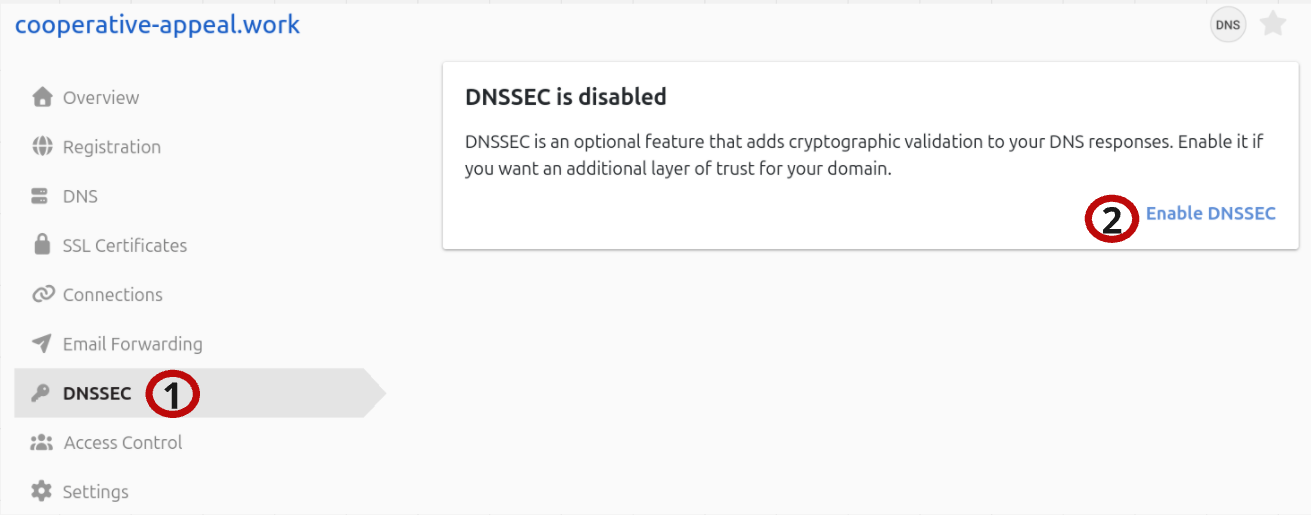
- DNSSEC tab - DNSSEC management options for the domain.
- Enable DNSSEC link on the DNSSEC is disabled card - Opens the Enable DNSSEC page.
Enable DNSSEC
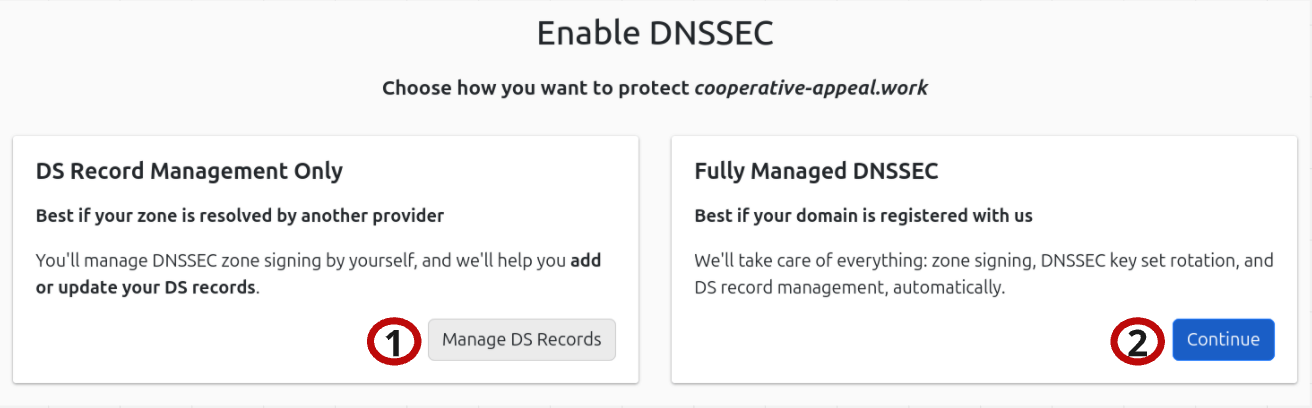
- Manage DS Records button (DS Record Management Only card) - Add DS records for a domain whose zone is signed by another DNS provider.
- Continue button (Fully Managed DNSSEC card) - Goes to options to have DNSimple fully manage the domain’s DNSSEC. For a domain already delegated to DNSimple, this button is instead.
The screenshot shows a domain registered with DNSimple. For a domain registered elsewhere, the page shows a card with an button, and the card asks you to transfer the domain to DNSimple.
Note
When DNSSEC is enabled, a label is shown next to the domain in the Domain Names list.
Add DS Record For Domain Not Delegated to DNSimple
DS records are added for the registered domain only. Adding DS records for a delegated subdomain (a zone cut) is not supported. See DNSSEC Compatibility With Other DNSimple Features.
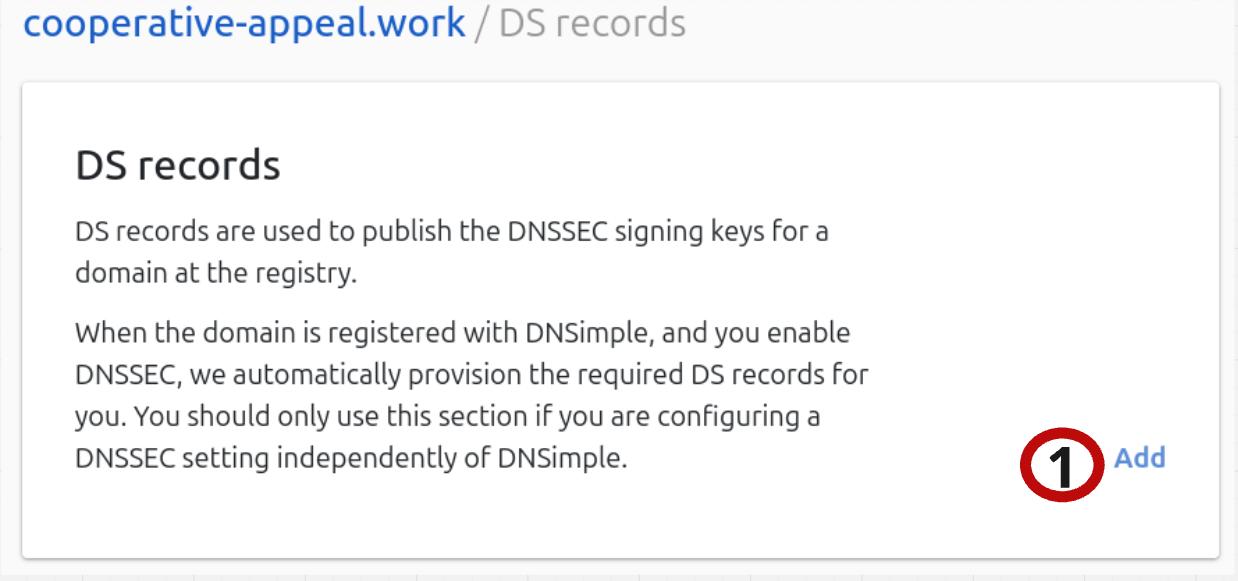
- Add DS Record button - Add a DS record.
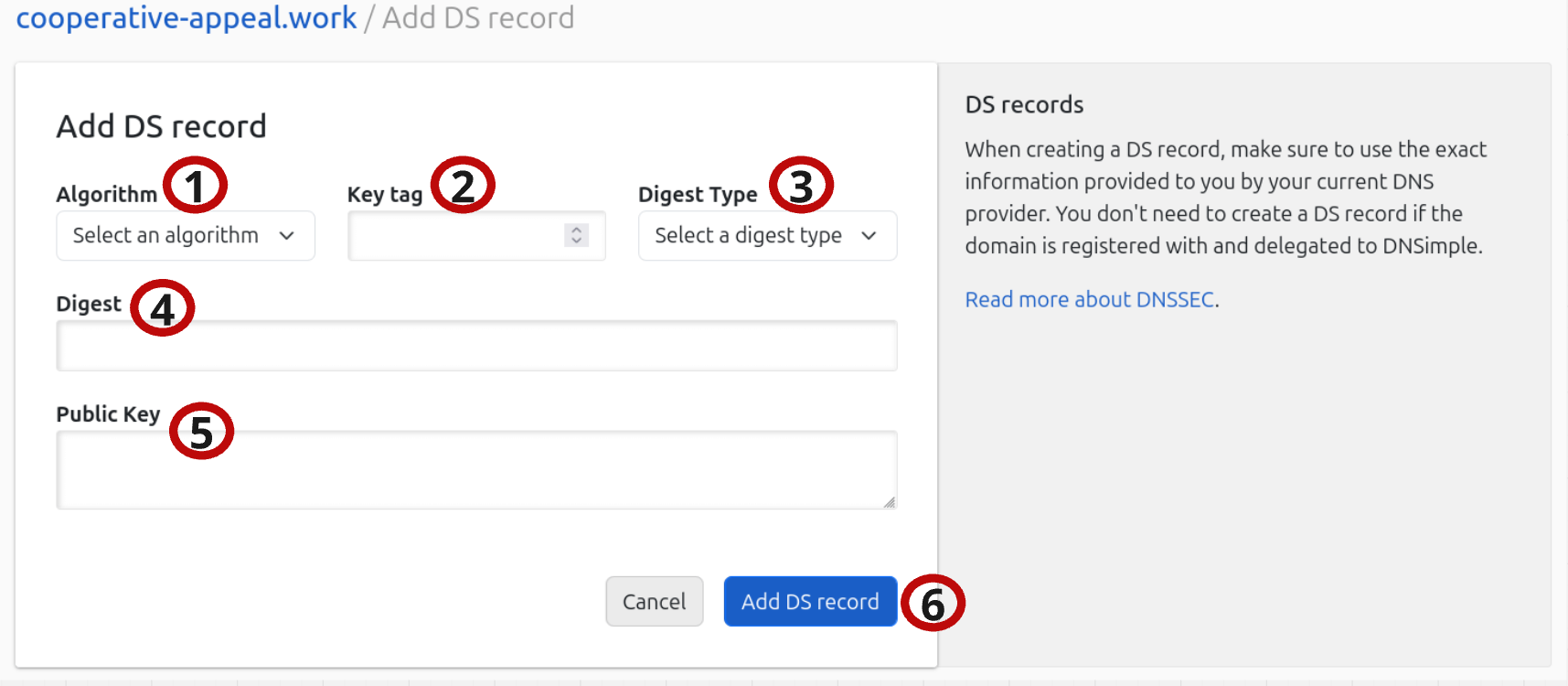
- Algorithm - Choose algorithm type for the DS record.
- Key tag - Enter the key tag number.
- Digest Type - Select the digest type for the DS record.
- Digest - Enter the digest provided by your current DNS provider.
- Public Key - Enter the public key of the Key-Signing Key (KSK) of your zone signing configuration provided by your DNS provider.
- Add DS record button - Adds the DS record to DNSimple for the domain.
Fill in either the digest fields (2-4) or the public key (5). The algorithm is always required.
Enable Fully Managed DNSSEC
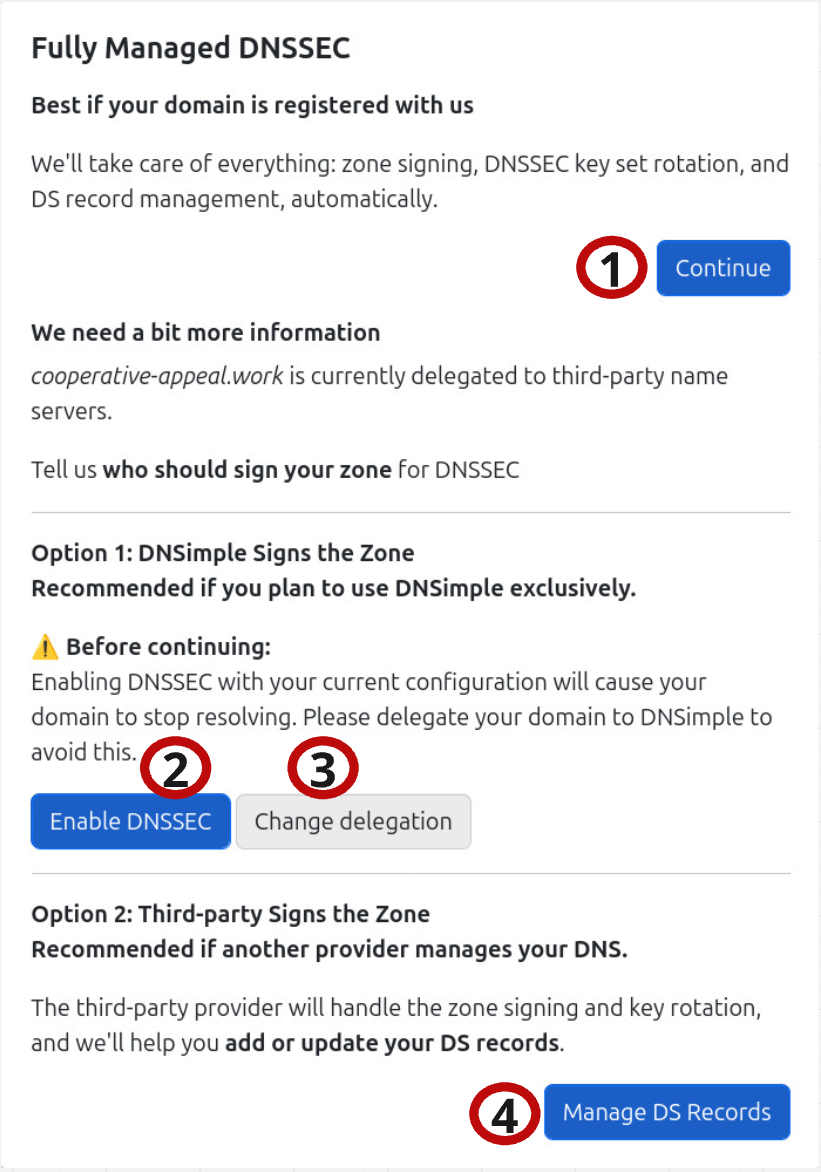
- Continue button - Goes to options to have DNSimple fully manage the domain DNSSEC.
- Enable DNSSEC button - Enables fully managed DNSSEC.
- Change Delegation button - Only available if the domain is not delegated to DNSimple.
- Manage DS Records button - Used to manage DS Records when the domain is using another DNS provider.
Enabling DNSSEC
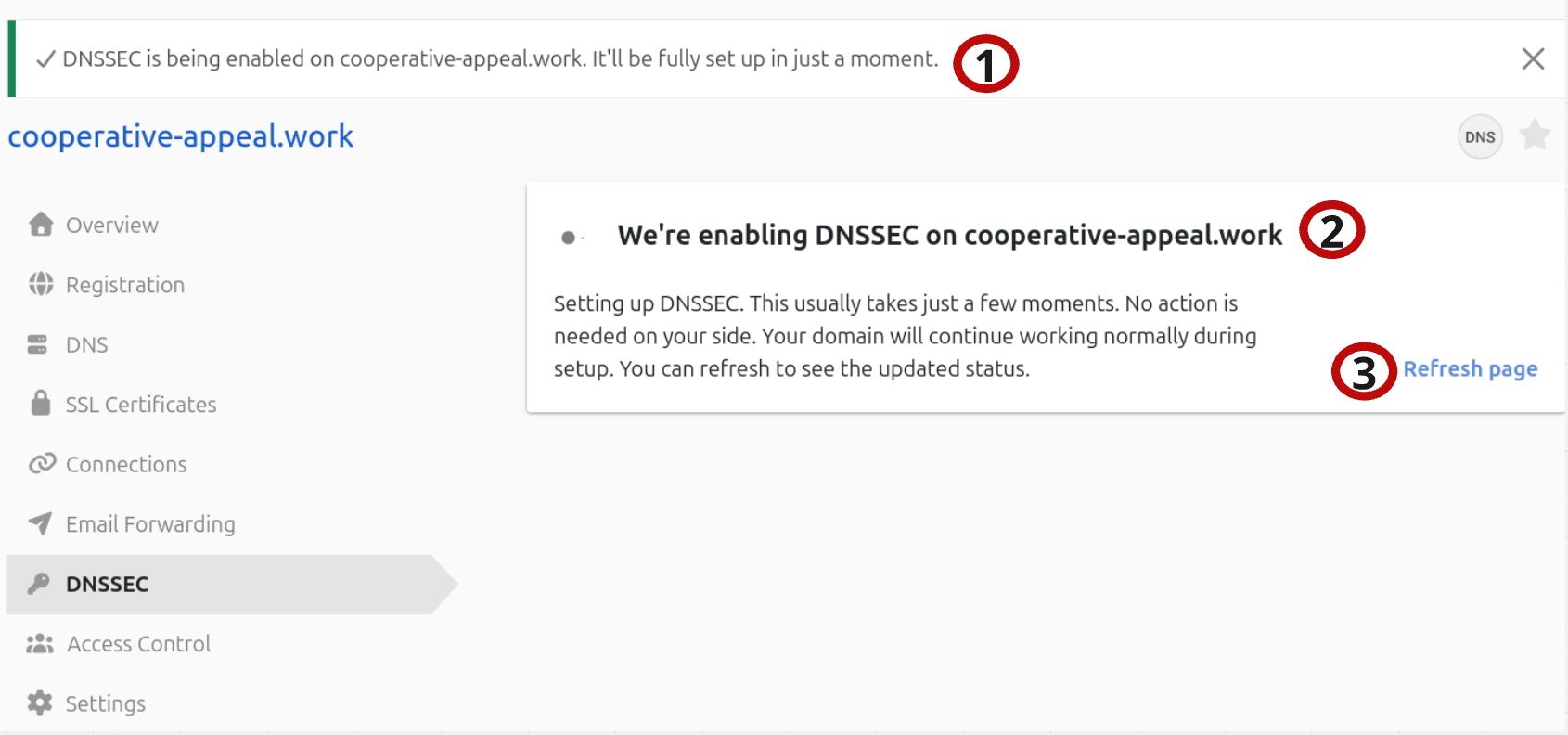
- Enabling Notification - Notification that DNSSEC is being enabled.
- We are Enabling DNSSEC on (domain) Card - Status card for DNSSEC.
- Refresh page button - Refreshes page and status.
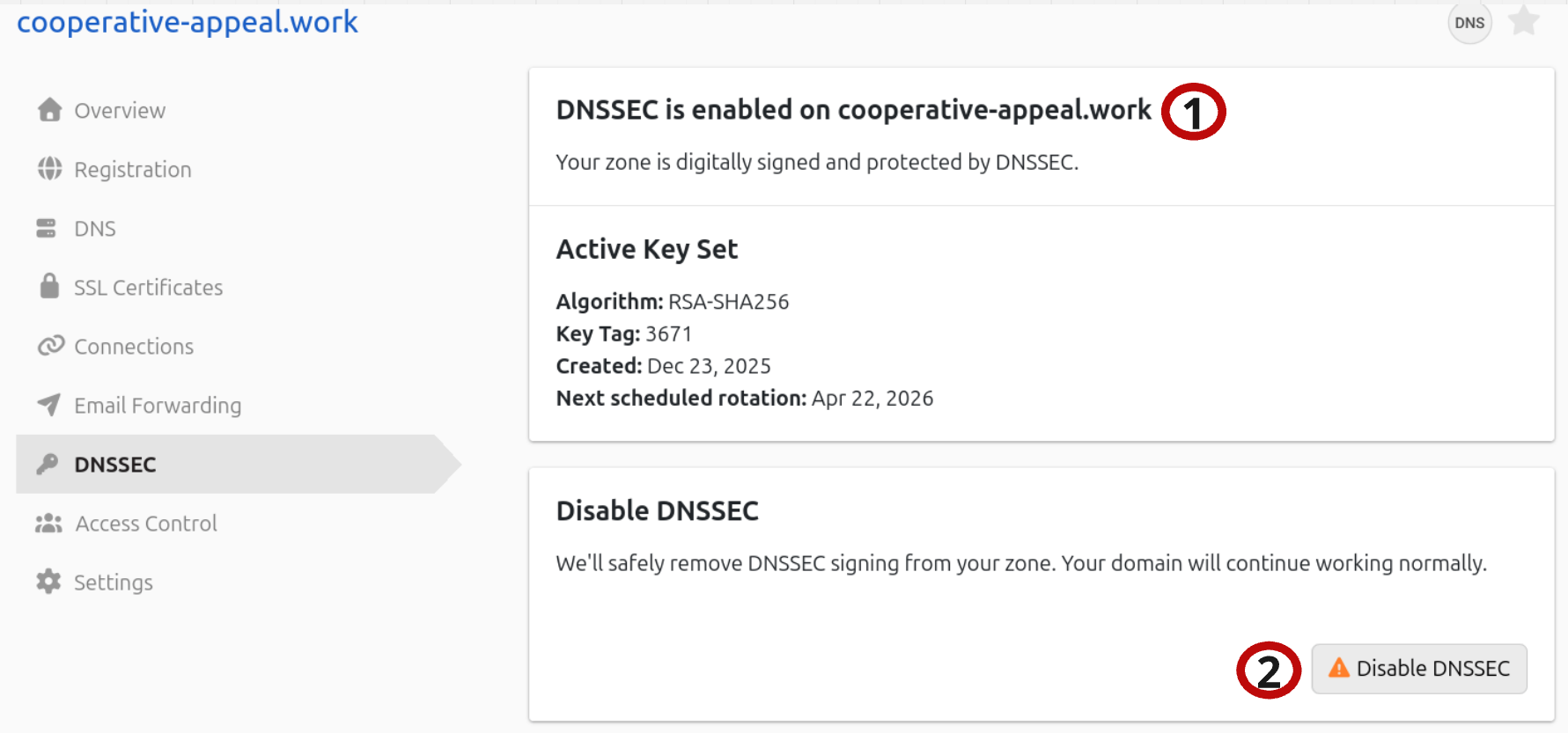
- DNSSEC is enabled on (domain) card - Shows DNSSEC is enabled on the domain. Below it, shows the key set’s algorithm, key tag, creation date, and next scheduled rotation.
- Disable DNSSEC button - Disables DNSSEC on the domain.
Rotating keys
During an automatic key rotation, the card reads and a section appears. For a domain registered elsewhere, shows the new DS record in both DS-data and KEY-data format, with a copy button for each, so you can add it at your registrar.
Disable DNSSEC
After clicking on the Disable DNSSEC button in the Disable DNSSEC card, you will start the process of disabling DNSSEC.
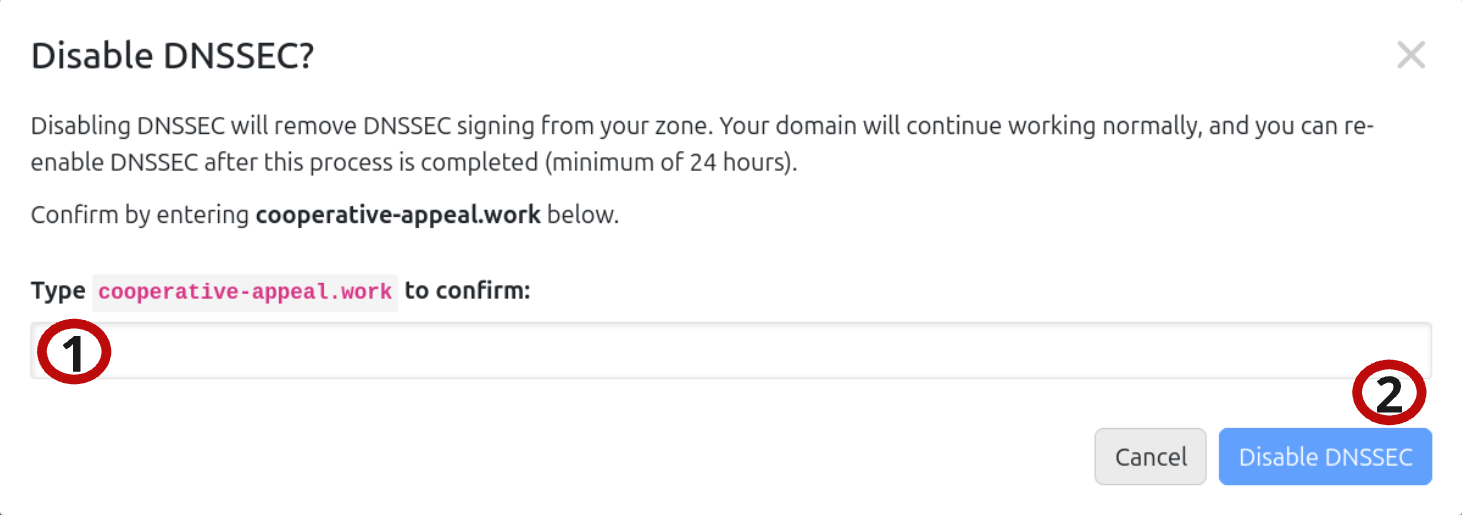
- Confirm - Type the domain name to confirm.
- Disable DNSSEC button - Disables DNSSEC on the domain.
Disabling DNSSEC
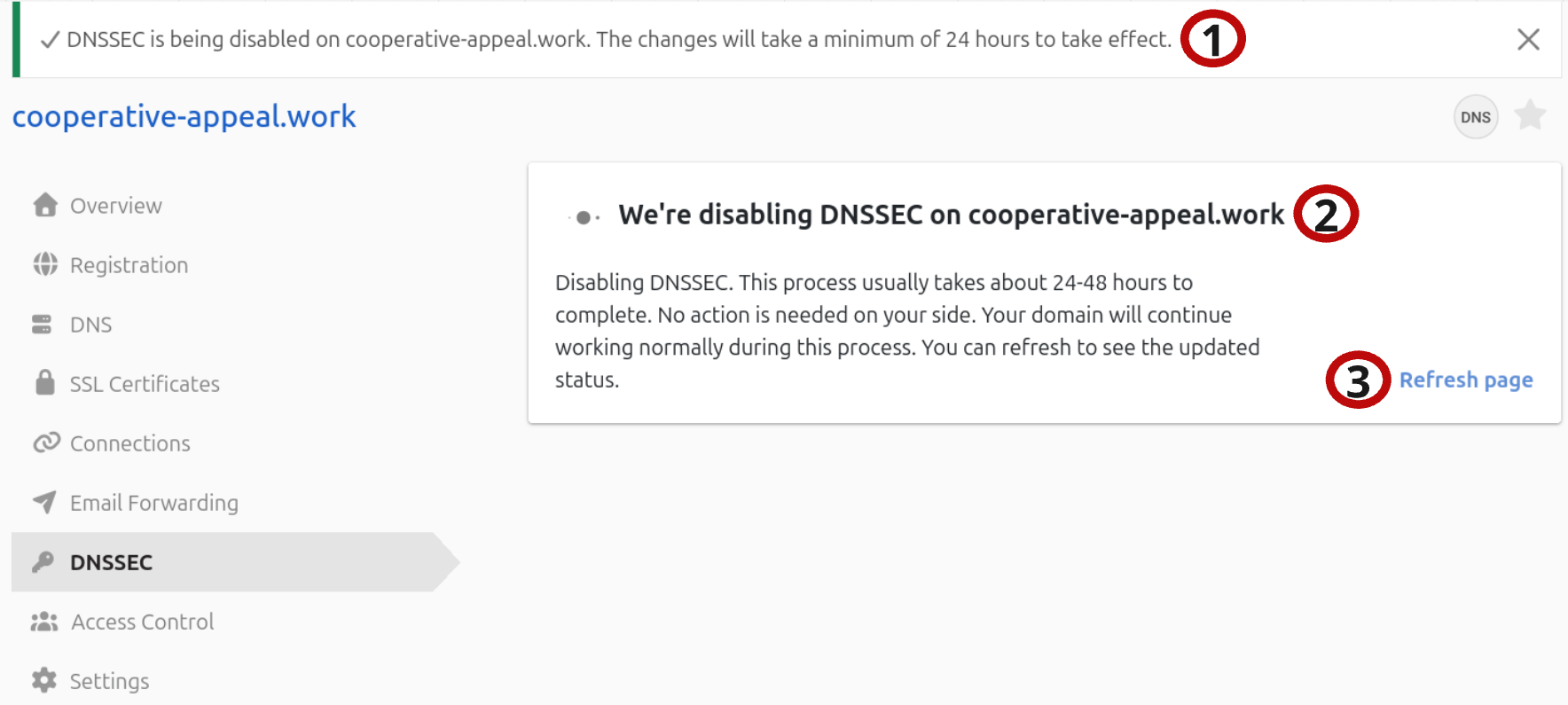
- Disabling Notification - Notification that DNSSEC is being disabled.
- We are Disabling DNSSEC on (domain) Card - Status card for DNSSEC.
- Refresh page button - Refreshes page and status.
Have more questions?
If you have any questions or need assistance with your DNSSEC management, contact support, and we will be happy to help.