Organize and Label Domains
Last updated
Table of Contents
Labels let you organize your domain portfolio in DNSimple. Add labels to group domains by project, client, or purpose, then filter your domain list to show only the domains you need.
Adding labels
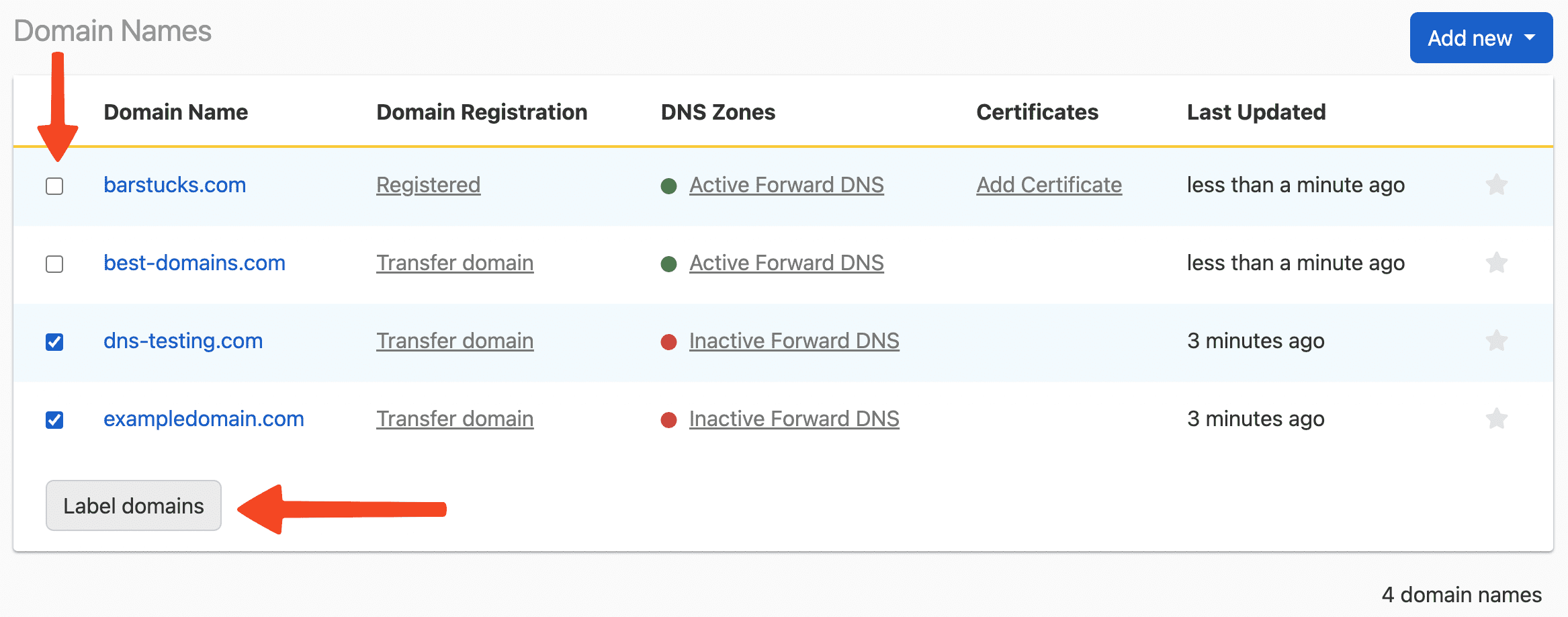
From the domain names list page, select the domain names you want to label. The Label domains button will appear in the domain list interface. Click Label domains to open the labeling dialog.
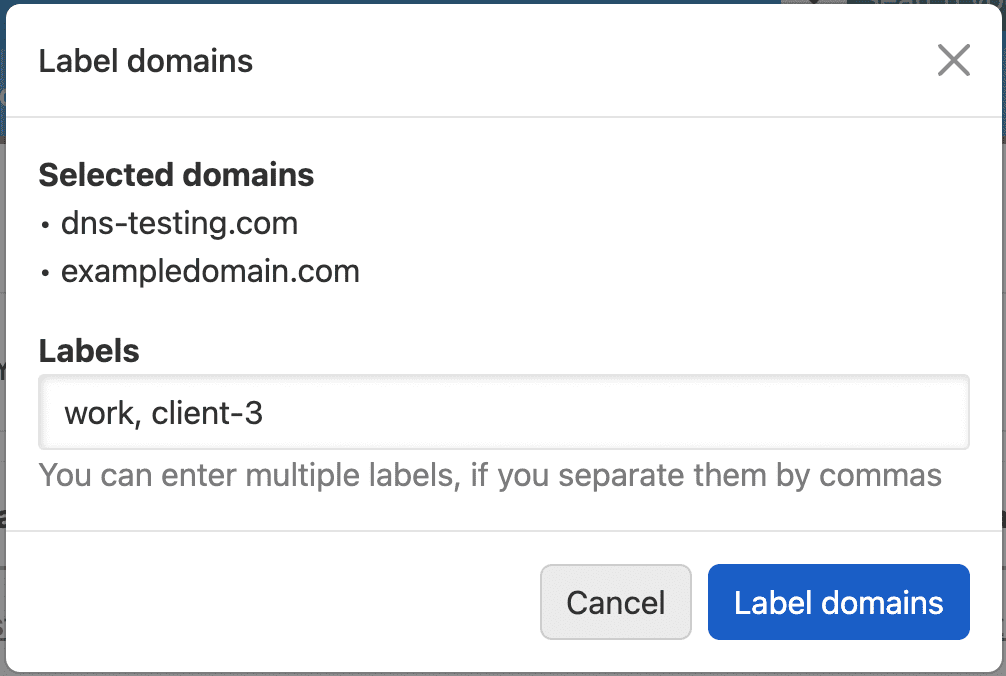
A pop-up appears where you can type a label. To add multiple labels at once, separate them with a comma.
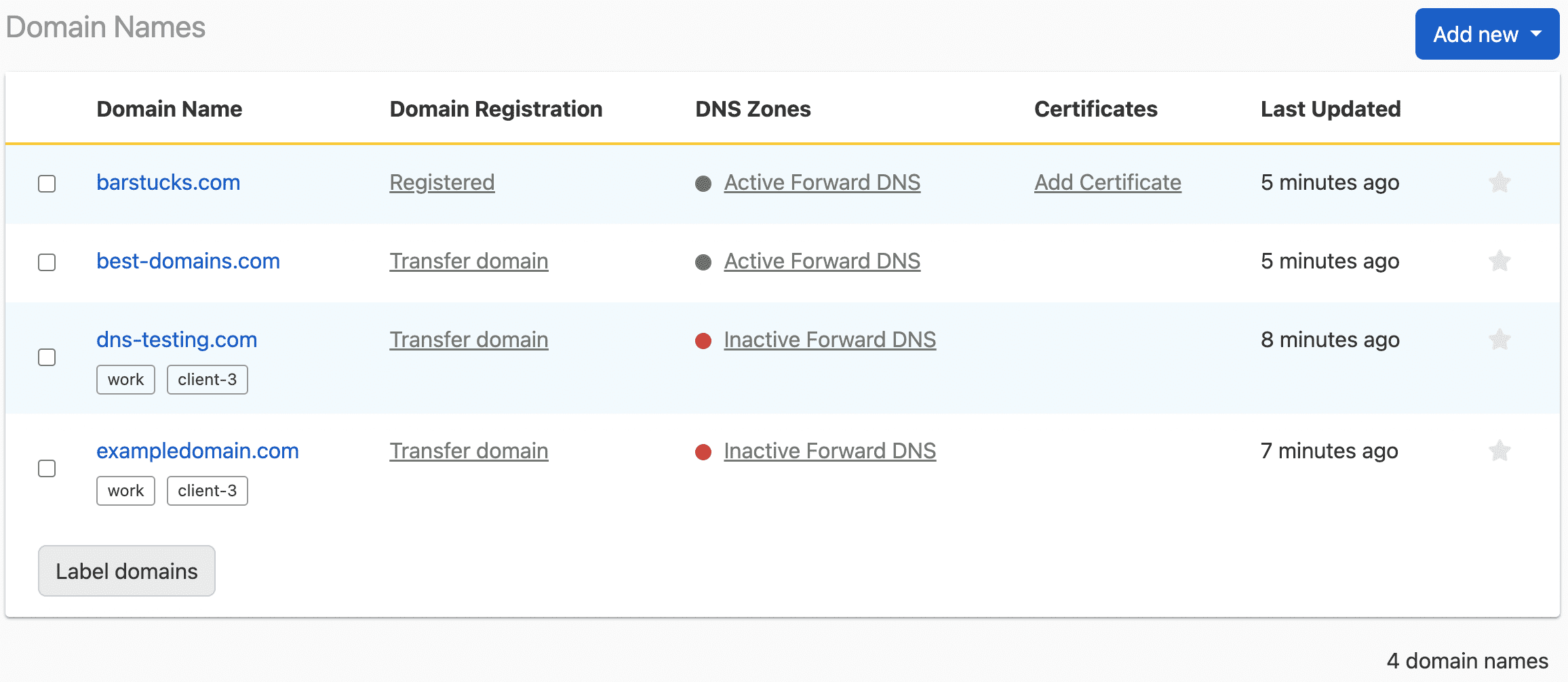
The domain names list now displays the labels.
Filtering by labels
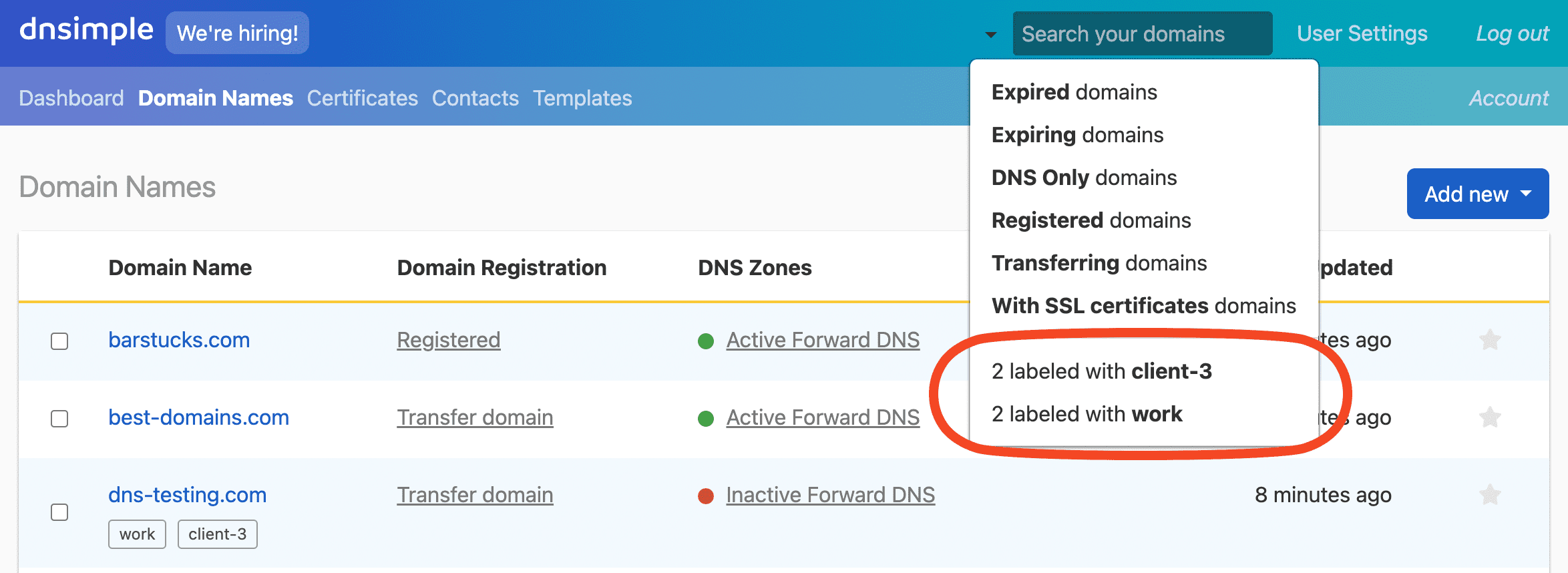
To filter your domain names list by label, click the arrow at the right end of the search box in the header, and select a label from the list. The table then shows only the domain names with that label. The number before each label is how many domain names have it.
Editing and removing labels
Editing labels is as simple as choosing the domain names that you want to correct the labels for. See how to add labels. On the label pop-up, you can edit the label name.
To remove labels, just clear out the label input leaving it blank.
Have more questions?
If you have any questions about organizing and labeling domains, just contact support, and we will be happy to help. You can also read more about domain registration at DNSimple.