How to Install an SSL Certificate
Last updated
Table of Contents
- Using the SSL Certificate Installation Wizard
- Platform-Specific Installation Guides
- Generic Installation Instructions
- Downloading the SSL Certificate
- Downloading the Private Key
- Have more questions?
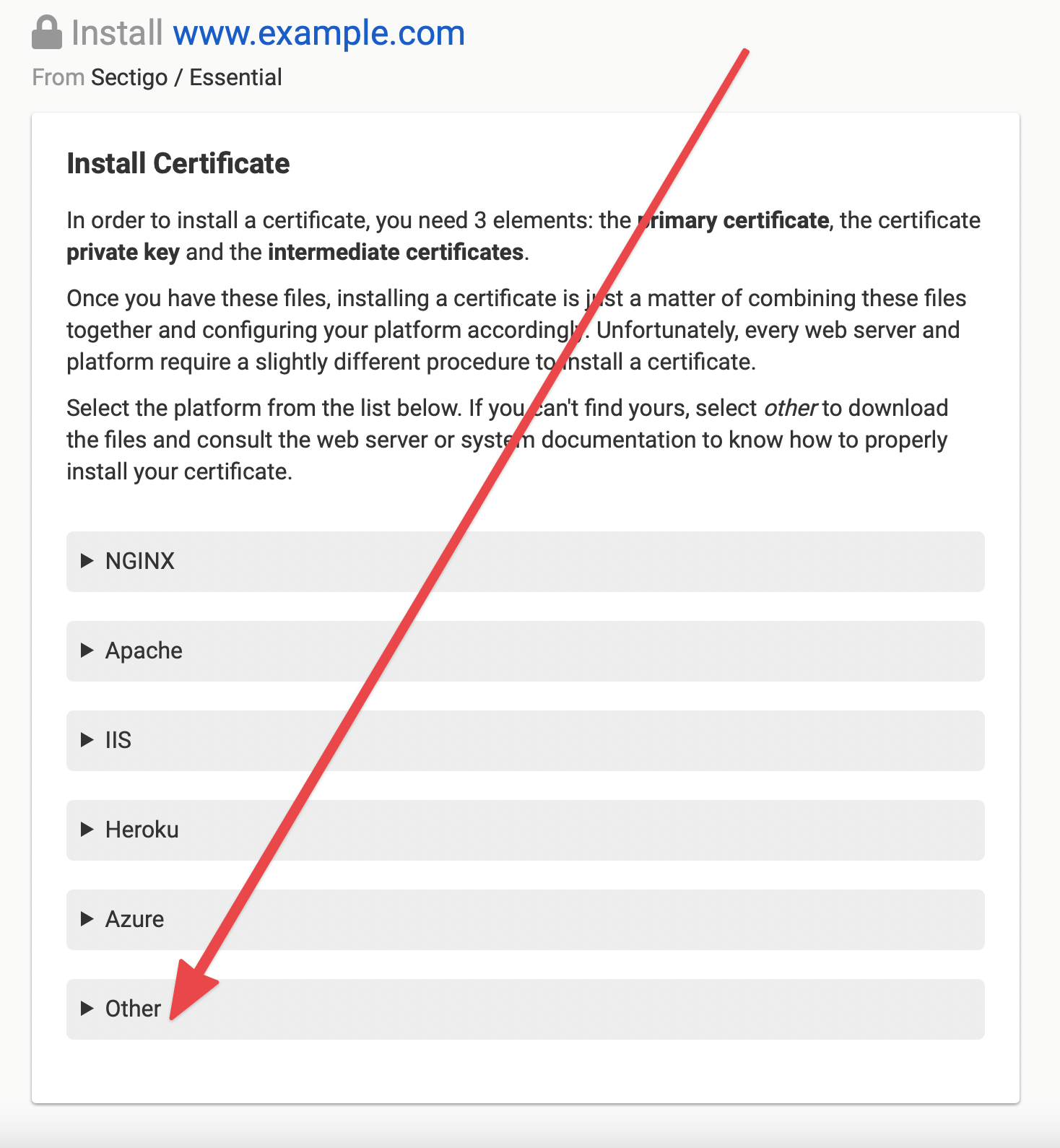
DNSimple provides an installation wizard that guides you through installing your SSL certificate on the most common web servers and platforms: NGINX, Apache, IIS, Heroku, and Azure, plus an option with the files in generic formats. The wizard is available once the certificate is issued.
Using the SSL Certificate Installation Wizard
Steps to access the installation wizard
- Log into DNSimple with your user credentials.
- If you have more than one account, select the relevant one.
- On the header menu, click the tab, locate the relevant domain, and click on the name to access the domain page.
-
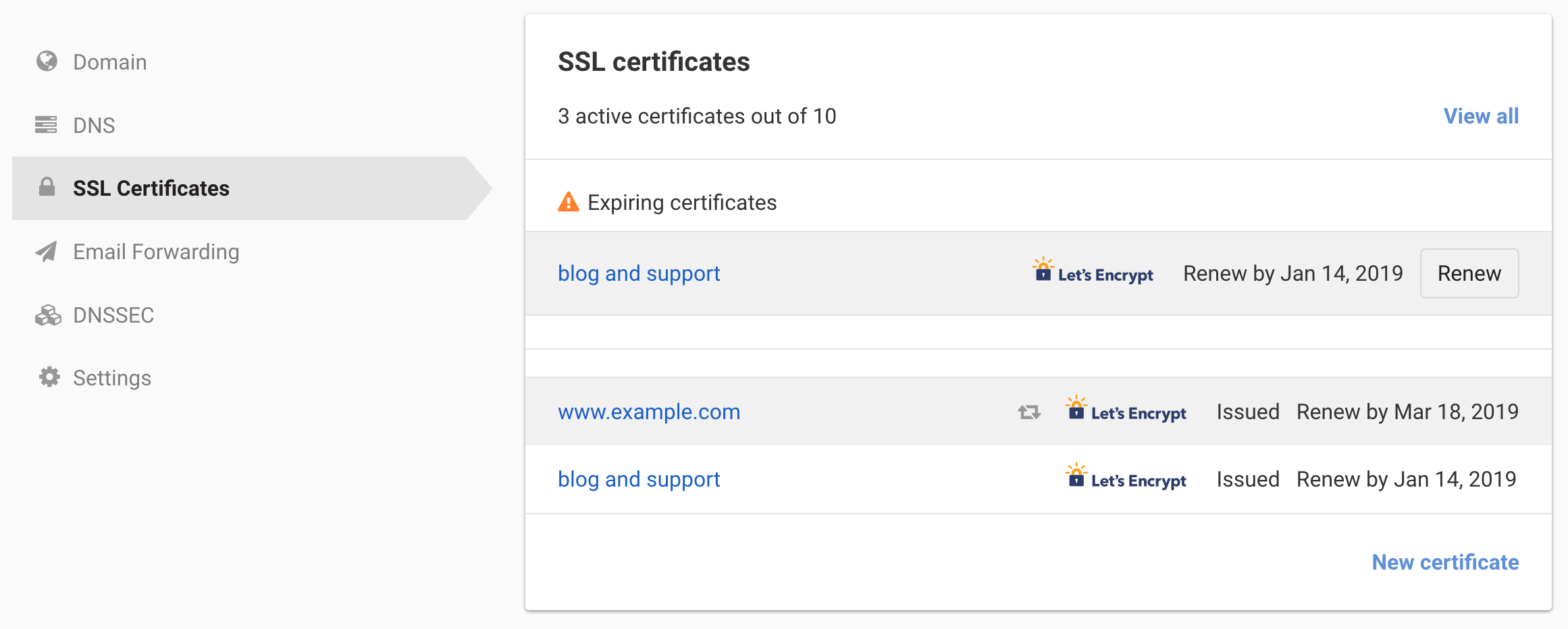
Select the SSL Certificates tab and click on the relevant certificate.
-
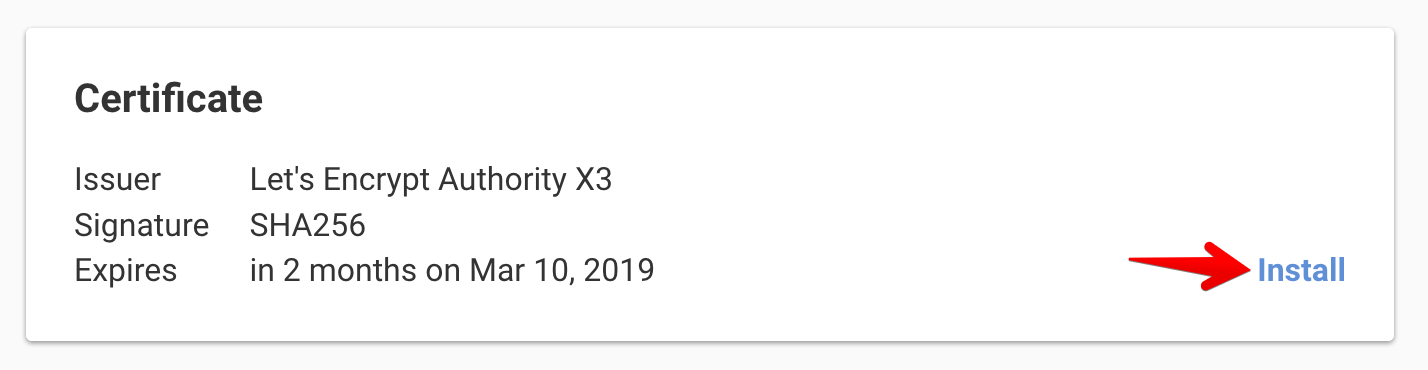
In the card on the certificate page, click .
- Click your server or platform in the list to expand it, and follow the instructions.
Platform-Specific Installation Guides
For detailed instructions for specific platforms, see:
- How to Install an SSL Certificate on Apache
- How to Install an SSL Certificate on NGINX
- How to Install an SSL Certificate on Microsoft IIS
- How to Install an SSL Certificate on Heroku
- How to Install an SSL Certificate on Microsoft Azure
- How to Install an SSL Certificate on Windows
Generic Installation Instructions
If you are not using one of the platforms listed above, you can obtain your certificate in several generic formats from the Other section of the installation wizard.
Downloading the SSL Certificate
The section has these files to download:
- The certificate, as a
.crtfile - The private key, as a
.keyfile - The certificate and its intermediate certificates together, as a
.pemfile - The intermediate certificate chain on its own, as a
_bundle.pemfile
For what each format is for, see Understanding SSL Certificate Files and Formats.
Downloading the Private Key
The private key of your certificate is available to download from this section and from the main certificate page. If you provided your own CSR or deleted the private key from our servers, you will no longer be able to download it, and some features of the installation wizard will not work. DNSimple also deletes a certificate’s private key automatically 15 days after the certificate expires.
Have more questions?
If you have additional questions or need any assistance installing your SSL certificate, just contact support, and we’ll be happy to help.