Create a Record Note
Last updated
A record note records why a DNS record exists or why it changed. Notes can be up to 512 characters.
Add a note to an existing record
To add a note to an existing record
- If you have more than one account, select the relevant one from the account switcher at the top-right corner of the screen.
- On the header, click the tab.
- Locate the relevant domain, and click on the name to access the domain page.
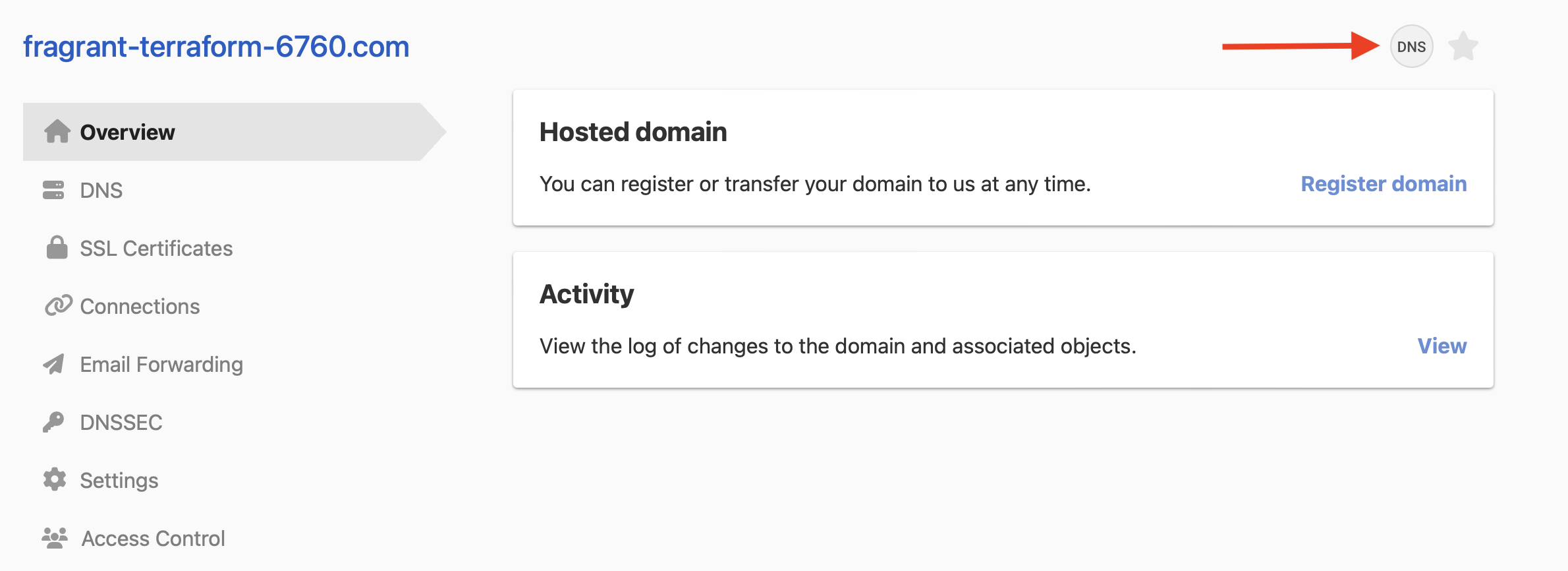
- Click at the top right of the domain page.
- Click the three-dot actions menu at the end of the record row, then select . If the record already has a note, the option is .
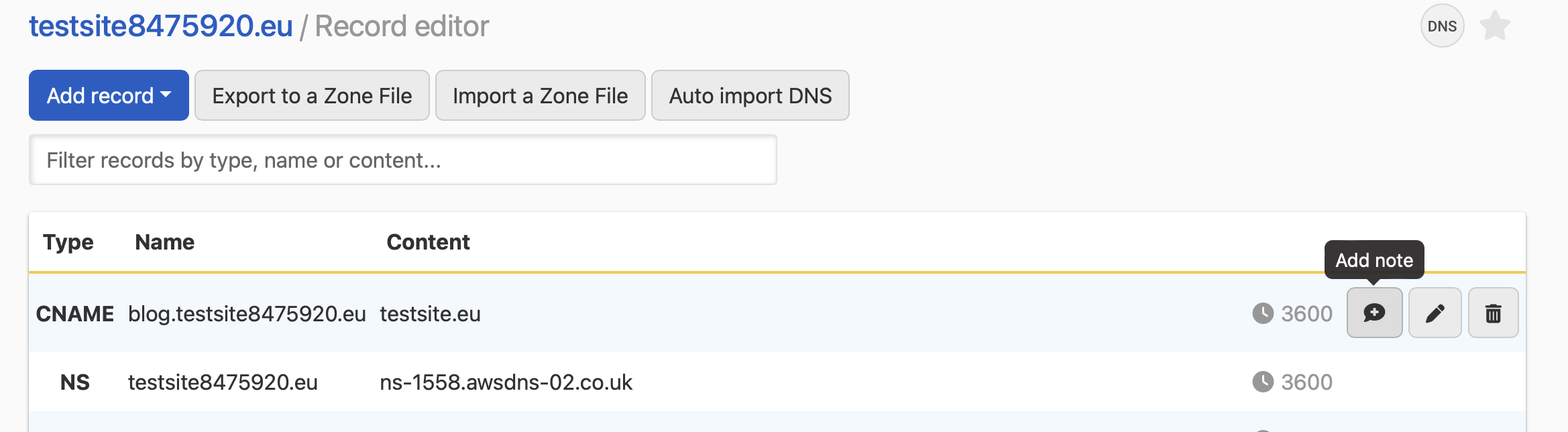
- In the dialog, enter your note, then click .
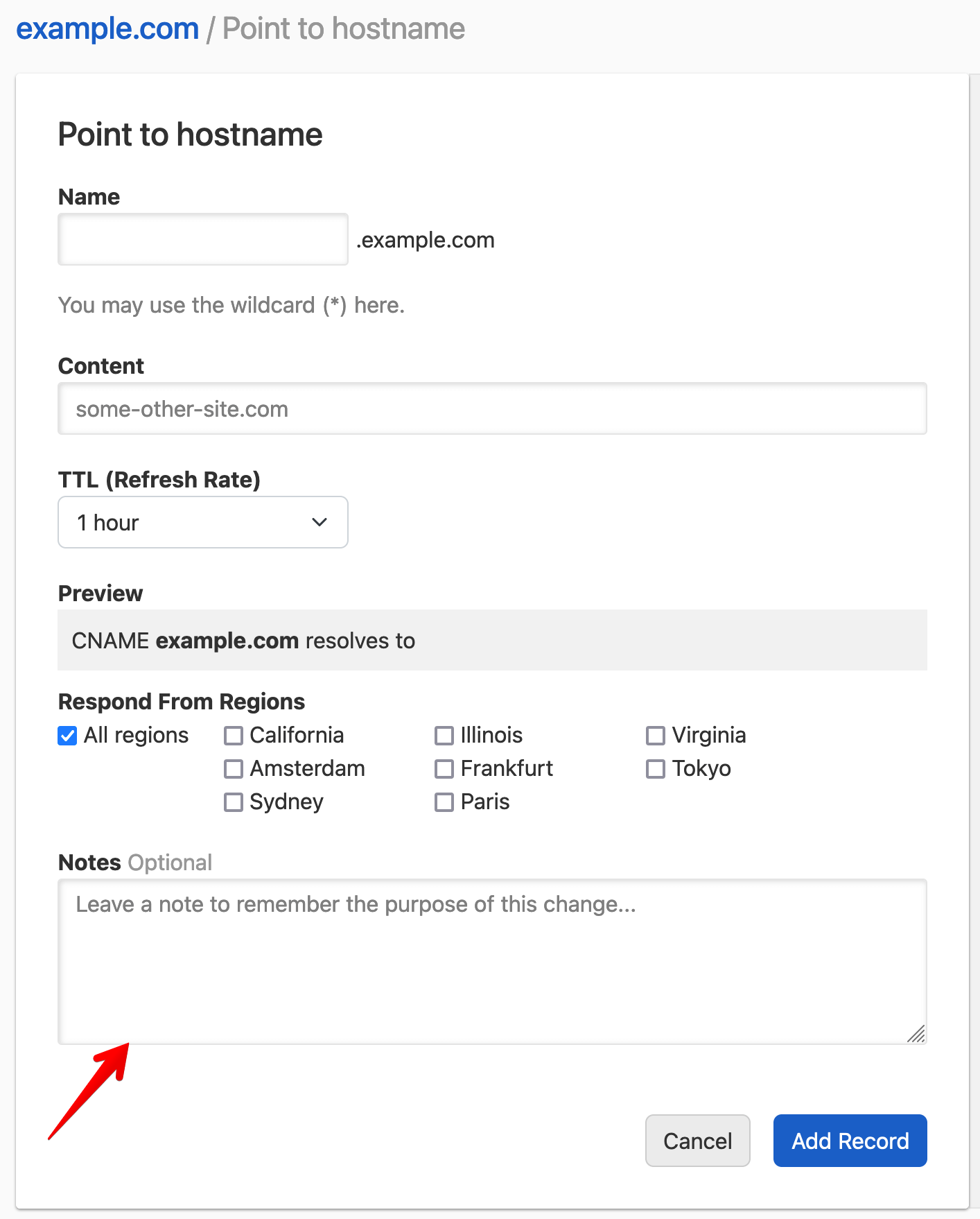
Add a note when you create or edit a record
When you add or edit a record, enter your note in the Notes field at the bottom of the form, then save the record.
Have more questions?
If you have additional questions or need any assistance with record notes, just contact support, and we will be happy to help. You can also read more about DNS hosting at DNSimple.