Changing Domain Contacts
Last updated
Table of Contents
- Assigning a new domain contact
- Updating a domain contact
- Monitoring a contact change
- Registrant changes that need registry confirmation
- Special WHOIS policies
- Have more questions?
For domains registered with DNSimple, Domain Managers and anyone with Full Access can change the contact associated with a domain at any time. Creating or editing contacts on the tab requires Full Access, so a Domain Manager can only choose from contacts that already exist. For an overview of domain contact documentation, see Domain Contacts at DNSimple.
Domains that use domain trustee may show only the extended attributes that still apply for that trustee configuration when you update contacts.
Note
These instructions apply only to domains registered with DNSimple. If you are hosting the domain with us, and the domain is registered elsewhere, you will have to update the contact information at your current registrar, or transfer the domain to DNSimple.
Assigning a new domain contact
To assign a new contact to one of your domains, create the new contact record, then associate the domain to the new contact.
Adding and changing contact information
- If you have more than one account, select the relevant one.
-
On the header, click the tab, then click .
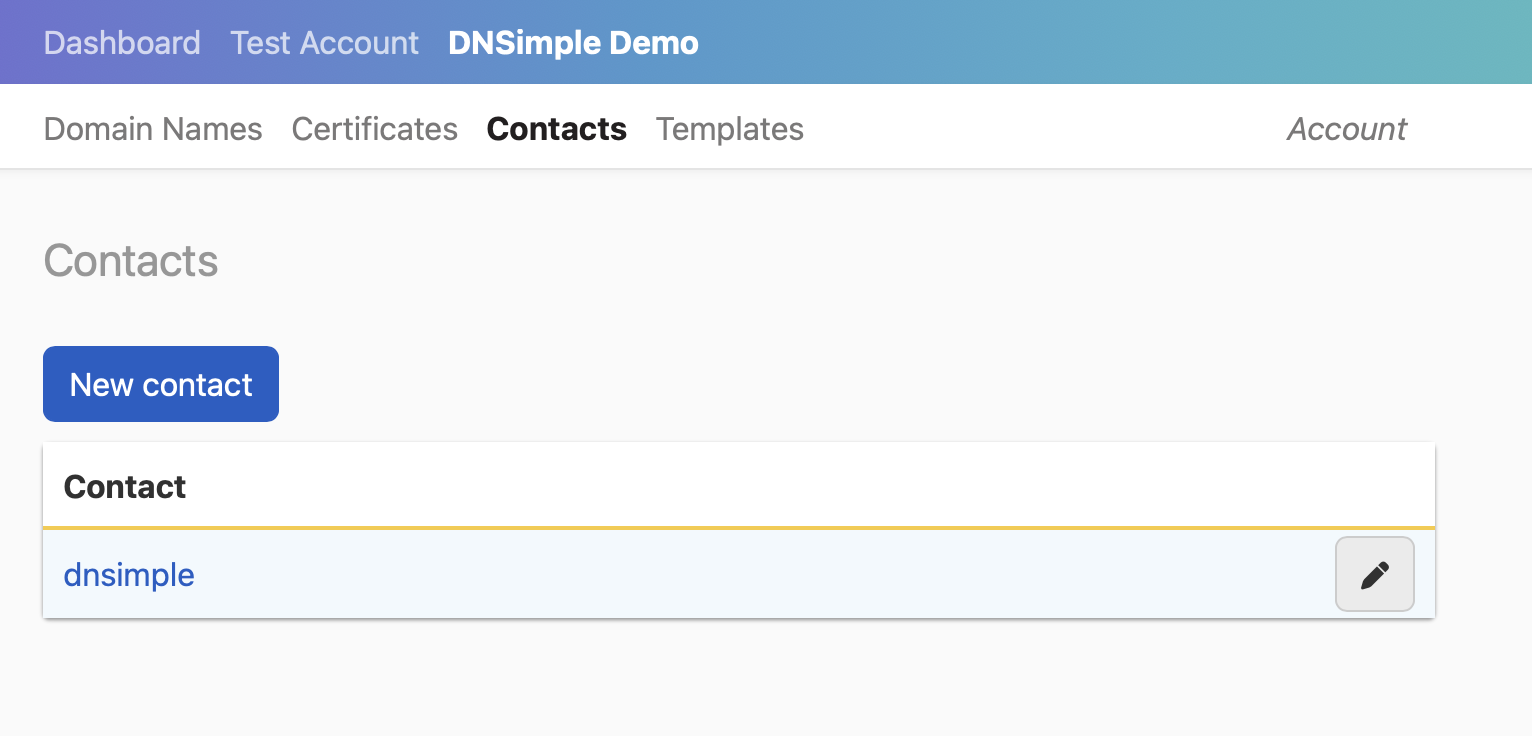
- Fill in the form with the new contact information, and click .
- On the header, click the tab, locate the relevant domain, then click the name to access the domain page.
- On the domain details page, click the tab on the left side.
-
On the card displaying the contact information of your domain, click .

- You will see a list of all your existing contacts. The one currently assigned to the domain is automatically selected. By selecting a contact, you will see the chosen contact information with its extended attributes. Click .
-
You will see a confirmation of the new contact information for the domain. You may see a message that the contact change results in the domain being locked from transfers for 60 days. Click to confirm the change.

Updating a domain contact
You can update the contact details to change existing contact information. DNSimple sends the updated details to the registry about 10 minutes after you save them. Some TLDs require a confirmation before a registrant change completes. See registrant changes that need registry confirmation.
To change the contact information
- On the header, click , locate the contact you want to change, click the menu at the end of its row, then select .

- Update the information and click .
- The contact page confirms the update. If you changed the name, organization, or email address of a contact that is the registrant on registered domains, a notice says how many verification emails to expect: one for each domain.
Monitoring a contact change
Note
When the registrant’s name, organization, or email address changes, the registrant email address may receive a verification email from noreply@emailverification.info. See Domain Validation Requirements. You may also see a message that the contact change results in the domain being locked from transfers for 60 days.
Check the status of a registrant change
-
On the domain details page, click the tab on the left side.

-
If action is required, the card displaying the contact information of your domain shows a list of instructions that must be completed for the registrant change to succeed.

-
To stop a change that has not completed yet, click .
A registrant change can be canceled while it is still new or pending, if the registrar still allows it. When it can no longer be canceled, the button does not appear. Once it completes, it cannot be reversed from this page; you would need to start a new change.
Registrant changes that need registry confirmation
Most registrant changes complete without any extra steps. For the following TLDs, the change waits for a confirmation, and the contact card on the tab shows an notice with the steps:
| TLD | What to do |
|---|---|
| .at, .au, .nu, .se | The new registrant receives an acknowledgment email. Click the link in that email to complete the change. If the change is not acknowledged within 10 days, it is canceled. |
| .es | The change has to be confirmed at the registry. Contact support and we will complete the registrant change for you. |
If the acknowledgment email does not arrive, check the new registrant’s spam folder, then contact support.
Special WHOIS policies
Some registries have their own contact update policies that can make a WHOIS update fail. For the most common ones, see special WHOIS policies in Change WHOIS Information.
Have more questions?
If you have any questions about changing contacts for your domains, just contact support, and we’ll be happy to help.